
Trash and removing files
KK Library moves Koikatsu scenes, cards and outfits to its Trash and back, deletes their files or takes them out of your library, then finds files that went missing.
- Where to find it
- Trash and Missing files in the sidebar, and More actions ▸ Remove from library in the inspector
What it is
#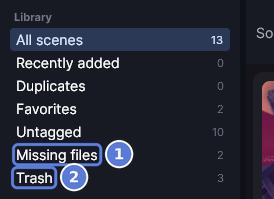
An asset leaves the grid when you move it to the Trash (2), remove it from your library or its file goes missing (1). Each action affects the file and its library data differently. The table shows what each one keeps or removes.
| What happens | The file on disk | Its library data |
|---|---|---|
| Move to Trash | Stays where it is, unchanged | Kept. The asset leaves the Quick List and every other list, search and count |
| Restore from the Trash | Unchanged | Kept as it was. The asset doesn't go back on the Quick List |
| Delete from the Trash | Goes to the Recycle Bin, or is deleted permanently when it can't | Deleted with the asset |
| Remove from library | Stays, unless you turn on Also delete the files from disk | Deleted with the asset |
| The file goes missing | Gone, or moved where KK Library can't find it | Kept. The asset waits under Missing files |
| Locate file | Stays, or moves into a library folder you choose | Kept, or merged with the asset that already had the file |
What it can do
#The Trash
#Moving an asset to the Trash asks nothing, because you can restore it. Nothing leaves the Trash on its own.
- Press Delete in the grid to move the selection. Only a selection made with Ctrl+A asks first, because it can cover tiles you haven't seen.
- Scenes, character cards and outfits each have their own Trash.
- Search or add a chip first to restore or delete only part of it.
Deleting files
#A delete can't be undone in KK Library, so the file goes to the Windows Recycle Bin when Windows allows it.
- Files on a USB stick, a memory card or a network drive are deleted permanently. So are files with a path of 260 characters or more, files too large for the Recycle Bin and files on a drive with it off. The confirmation counts them first.
- A file on a drive that isn't connected stays, with its asset.
- Getting a file back from the Recycle Bin doesn't bring back its tags.
Removing from your library
#Each sync adds every file in your library folders, and KK Library keeps no list of the files you removed.
- To keep a file out for good, delete it, move it out of your library folders or skip it with Ignored folders and files (Skip folders and files when syncing).
Missing files and Locate
#A missing asset keeps its tags, rating and notes until you locate its file or remove the asset.
- A rename or move inside your library folders doesn't make a file missing. The next sync finds it by its size and date, then by its fingerprint, a value worked out from its whole contents.
- Locate the file yourself when it is outside your library folders, you saved it again in the game or it is already its own asset. Sync can't prove those are the same file.
- An unplugged drive marks nothing missing. A library folder that was deleted or moved marks all its files missing.
- Tags, notes, the Quick List and the Trash still work on a missing asset. Sending it to the game, renaming it and editing the card need the file.
- A file that is already its own asset merges with the one you locate, and both sets of tags are kept. Neither a merge nor a Locate move can be undone.
- Locate files matches many assets by fingerprint, then by file name. It never guesses, and leaves an unclear asset for you to locate on its own.
How to do it
#Move assets to the Trash
#
- Select a tile.
- Select Trash (1) at the bottom of the inspector. With several tiles selected, the button reads Move to Trash. The file stays on disk.
- The tile shows Moved to Trash until the grid refreshes, then leaves the list.
Restore assets from the Trash
#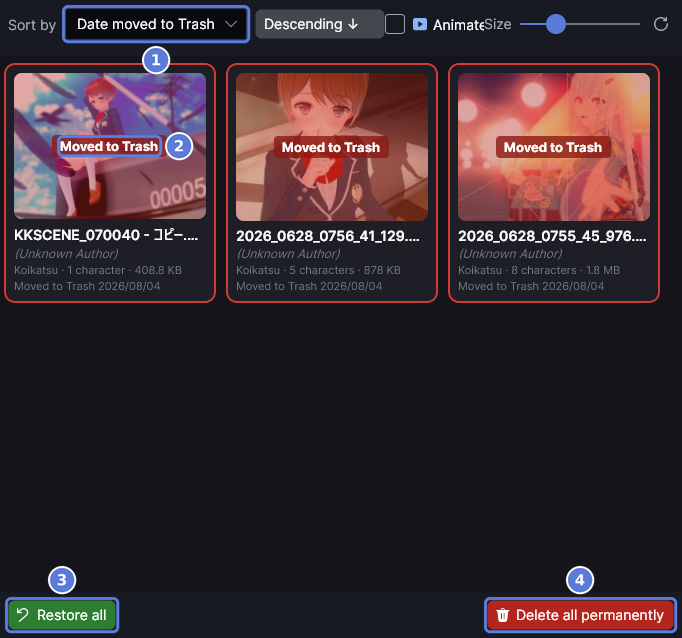
- Select Trash in the sidebar's Library list. Each tile shows Moved to Trash (2), newest first (1). The tile's last line and the inspector say the day it moved.
- To restore everything shown, select Restore all (3). It doesn't ask first.

- To restore one asset, select its tile, then Restore (1). With several tiles selected, the button reads Restore selected.
Delete files from the Trash
#- Select Trash in the sidebar. To delete only some, search or add a chip first.
- Select Delete all permanently. Narrowed, it reads Delete 3 assets permanently, with your count.
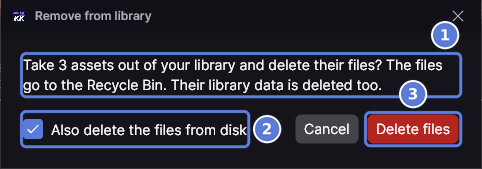
- Read the message (1). It says where the files go. If some can't go to the Recycle Bin, a line under it says how many are deleted permanently. If some are on a drive that isn't connected, a line says they can't be deleted. KK Library keeps those files and their assets.
- Leave Also delete the files from disk (2) turned on and select Delete files (3). The files go to the Recycle Bin, and the assets leave your library with their tags.
To keep the files, turn the box off. The button then reads Remove.
Remove an asset but keep its file
#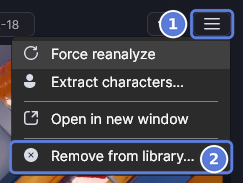
- Select a tile. For several tiles, the panel's More actions has the same item.
- Select More actions (1), then Remove from library (2).
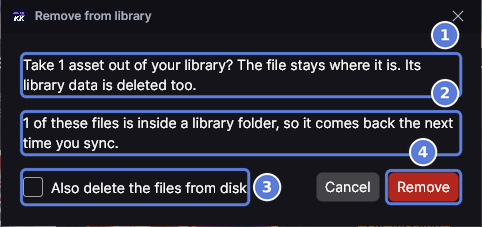
- The message (1) says the file stays where it is and its library data is deleted, like its tags and rating. If the file is inside a library folder, a line (2) says it comes back the next time you sync.
- Select Remove (4). To delete the file instead, turn on Also delete the files from disk (3).
Find missing files
#
- Select Sync. If files went missing, the status bar starts with Files no longer on disk (1) and their count.
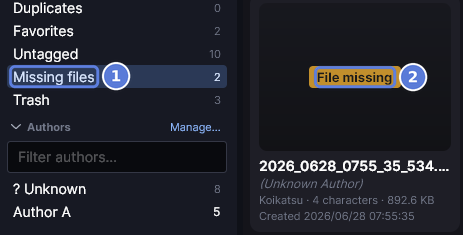
- Select Missing files (1) in the sidebar. Each tile shows File missing (2).
- Select a tile. The box under the file name says File not found. It says The file can't be read. when the file is there but no longer reads as a scene, card or outfit.
- If the file went by mistake, put it back in its folder and select Sync. The tile is normal again, with everything on it.
- If you know where the file is now, select Locate file (Locate a missing file).
- If you meant to delete it, select More actions ▸ Remove from library to take it out.
To take every missing asset out at once, press Ctrl+A on Missing files, then use Remove from library. The confirmation says their files are already gone and offers no file choice. To check one asset without a sync, select More actions ▸ Force reanalyze in the inspector. It marks the asset missing or clears the mark.
Locate a missing file
#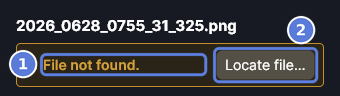
- Select Missing files in the sidebar, then the tile. The box under the file name (1) says File not found.
- Select Locate file (2). The Windows file picker opens in the folder the file was in, or the nearest folder above it that still exists.
- Choose the file. If it is in a library folder and no other asset has it, the tile is normal again, with everything on it.
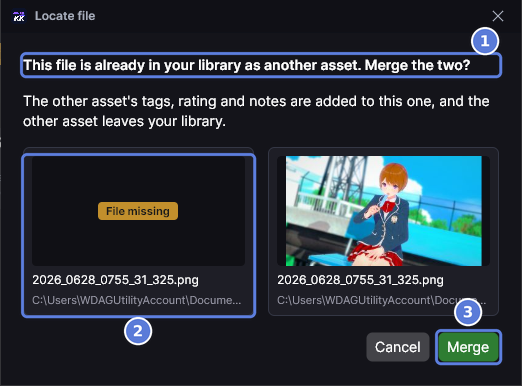
- If the file is already in your library as another asset, KK Library asks to merge the two (1). The asset you are locating (2) stays. Select Merge (3). The other asset's tags, rating and notes are added to it, and the other asset leaves your library.
- If the file is outside your library folders, a folder picker opens, Choose where to keep this file. Choose a folder inside a library folder, and the file moves there. Choose any other folder, and KK Library asks before it adds that folder to your library. Select Add folder. A file that was somewhere else moves into that folder.
Locate many missing files at once
#- Select Missing files in the sidebar and press Ctrl+A.
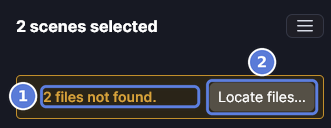
- The inspector counts the selected files that are missing (1). Select Locate files (2). It acts only on those missing assets.
- Choose the folder the files are in now.
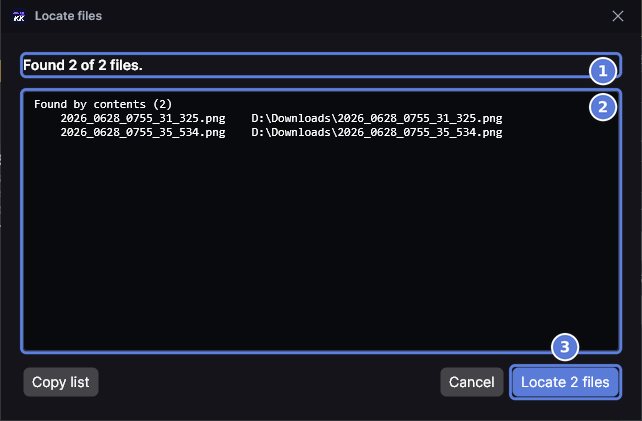
- Read the preview. The first line (1) says how many files were found. When some weren't found or are unclear, it counts those too. The list (2) names each file and where it was found, under how it was found. Nothing has changed yet.
- Select the button with your count, like Locate 2 files (3).
- If some files are outside your library folders, a folder picker asks once where to keep them all. Choose a folder inside a library folder, and they move there. Any other folder asks first, as for one file.
To locate an unclear asset, select it on its own and use Locate file. Then you choose the file yourself.
Checked with KK Library 0.1.0-beta.9.1