
Authors
KK Library suggests who made each Koikatsu scene, character card and outfit, so you can confirm the author, add aliases and merge two spellings of one name.
- Where to find it
- The inspector, Tools ▸ Author Manager and Authors in the sidebar
What it is
#An author is the person or group who made a scene, character card or outfit. Koikatsu files don't record the author, so KK Library suggests one from the folder names. You confirm or change it.
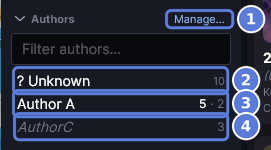
Every asset is in one of three states:
- Confirmed (3). You set this author. In the sidebar, the first number counts confirmed files and the second suggested files.
- Suggested (4). KK Library guessed the author. The name appears in italics until you confirm it.
- Unknown. The tile says (Unknown Author). ? Unknown (2) lists these files and files whose suggestions you rejected. KK Library won't repeat a rejected suggestion.
What it can do
#Confirm and correct authors
#Confirm or change an author in the inspector, for one file or many.
- Right-click an author in the sidebar and select Rename or Delete. Deleting moves its files to ? Unknown. KK Library won't add a deleted verified author from the list again.
- Organize files sorts by confirmed authors only. A file you move in File Explorer keeps its confirmed author. A suggested one takes its new folder's suggestion.
- While Review duplicates or Organize files is open, the pencil, Confirm and Assign are greyed.
Aliases and merging
#If one person uses several names, add them as aliases or merge them into one author.
- Aliases. Search finds the author by any alias, and a folder named with one is suggested for that author.
- Merging. The author you keep gets the others' confirmed files, aliases and links. Each merged name becomes a remembered folder.
- Similar names. Author Manager offers names that look alike for merging. Don't suggest again ignores a pair who are two people.
Author Manager
#Author Manager is where you review authors and edit their profiles.
- The Overview lists the folders to review and the authors with similar names.
- A profile holds the author's links. Update links brings a verified author's links and aliases back from the list.
- To open a profile, right-click a confirmed author's name and select Edit in Author Manager.
How KK Library suggests authors
#KK Library uses folder names and file names to suggest authors. It doesn't read the file's contents to identify them.
- It skips folders that sort by type or date, like
_Duplicatesandfemale, and the names you list as never suggested. - A folder named like one of your authors wins. Otherwise the outermost folder left is the author, so
Cards\Roku\scene.pngsuggests Roku. [Name] scene.pngsuggests that author if they are in your library.- A folder named after someone on the verified author list adds them as a verified author. Their files are still only suggested.
- Assign a whole folder to one author and it becomes their remembered folder. New files there arrive suggested.
- Author detection in File ▸ Manage library folders changes how one library folder guesses.
How to do it
#Confirm or change an author
#
- Select a tile. The inspector shows its author under the file name.
- If the suggested name (1) is right, select Confirm (2). The name stops being italic.
- To set someone else, select the pencil beside the name, enter the name and press Enter. A new name becomes a new author.
- To say the author is wrong without naming anyone, select the pencil, empty the box and press Enter. The file goes to ? Unknown.
To set the author of many files at once, select their tiles first.
Review suggested authors
#
- Open Tools ▸ Author Manager, or select Manage beside Authors in the sidebar. The list on the left (2) holds your authors.
- The Overview (1) lists Suggested author groups, one folder per row. Select Review on a row (4), or Start review → (3) to go through every group.
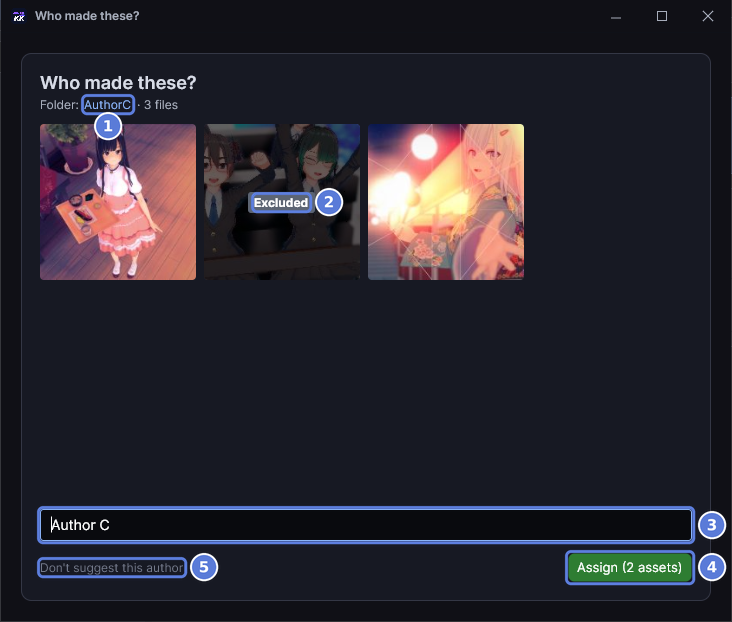
- Check the files. To open the folder in File Explorer, select its name (1).
- Select any file that isn't by this author (2). It reads Excluded and is left out.
- Enter the author in the box (3) and select Assign (4). The button counts the files it confirms, and reads Assign all when none is excluded.
- If the folder holds more than one author's work, select Don't suggest this author (5).
Don't suggest this author sends the group's files to ? Unknown, but a file added there later is suggested again. With a file excluded, KK Library doesn't remember the folder. An assign has no undo, so fix a wrong one in the inspector.
Never suggest a folder name as an author
#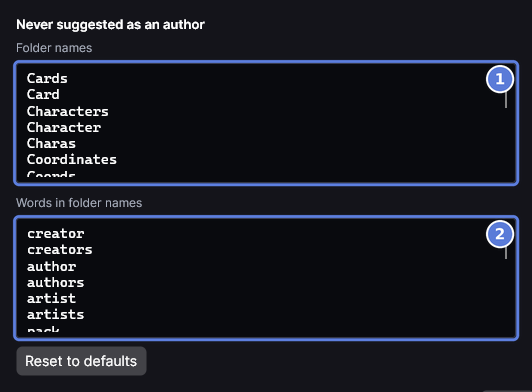
- Open File ▸ Settings, select Library and scroll down to Never suggested as an author.
- To skip one folder name, add it on its own line in Folder names (1). Capitals don't matter. A Japanese name counts as one word, so it goes here.
- To skip every folder whose name holds a word, add the word to Words in folder names (2).
requestskipsRequest 3but notRequests, so add both forms.
KK Library saves the list when you leave the box. Then it checks your folder names again, without reading any file. Reset to defaults puts both lists back.
Add an alias to an author
#
- In Author Manager, select the author in the list. Its profile opens. Review 2 assets (2) reviews the files still suggested for this author.
- Select More actions (3), then Aliases. Once the author has an alias, selecting the alias line (1) opens the same window.
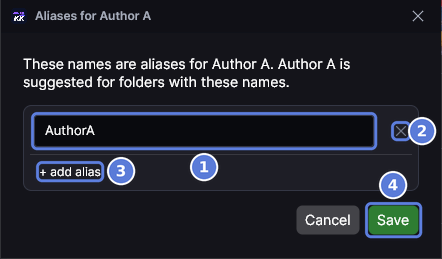
- Select + add alias (3) and enter the other name in the new row. To change an alias, edit its box (1).
- To remove an alias, select its ✕ (2).
- Select Save (4). Nothing changes before you save.
KK Library refuses an alias another author already uses, because a folder with that name would then be suggested for neither.
Merge authors into one
#
- In the Overview, POSSIBLE DUPLICATES lists authors with similar names. Select Review (1) on a row. You can also check two or more authors in the list.
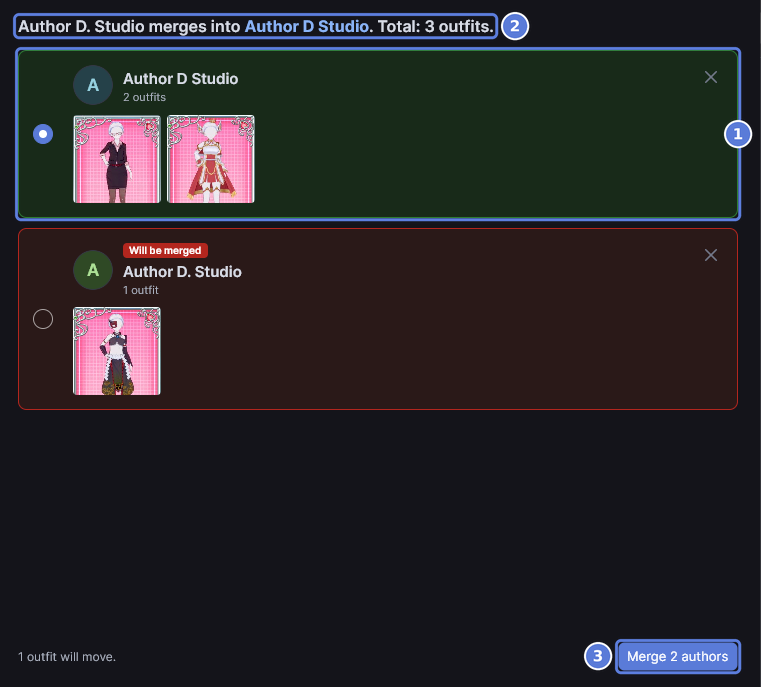
- Select the card of the name you want to keep (1). The other card reads Will be merged.
- Read the line at the top (2). It says which name merges into which. The line at the bottom says how many files move to the kept author, and anything the merge drops shows above it.
- Select Merge 2 authors (3). Only your library changes. No file moves on disk.
Ignore a suggested merge
#- On the POSSIBLE DUPLICATES row, select Don't suggest again (2). The row goes away. No author, alias or folder changes.
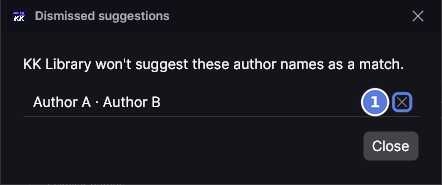
- To take it back, select More actions at the top right of the Overview. Then select Dismissed suggestions in its menu.
- Select the ✕ beside the pair (1). If their names are still similar, KK Library offers them again the next time it compares names.
Remove a remembered folder
#- In Author Manager, select the author in the list.
- Select More actions, then Folders. It shows only when the author has a remembered folder.
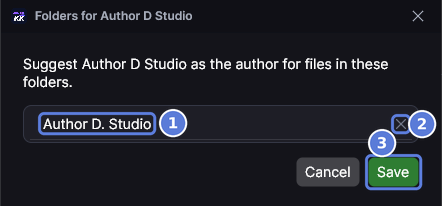
- Select the ✕ (2) beside the folder (1).
- Select Save (3).
Files you confirmed keep the author. The others go back to what their folder names suggest, and a new file there is no longer suggested for this author. A folder named after the author or an alias still suggests them.
Checked with KK Library 0.1.0-beta.9.1