
Organize files
KK Library moves your Koikatsu scenes, character cards and outfits into folders named by author, rating or tags, shows you the result first and can undo it.
- Where to find it
- Tools ▸ Organize files
What it is
#Organize files moves scene, card or outfit (coordinate card) files out of the folders they arrived in. It builds new folders from your library, like one folder per author.
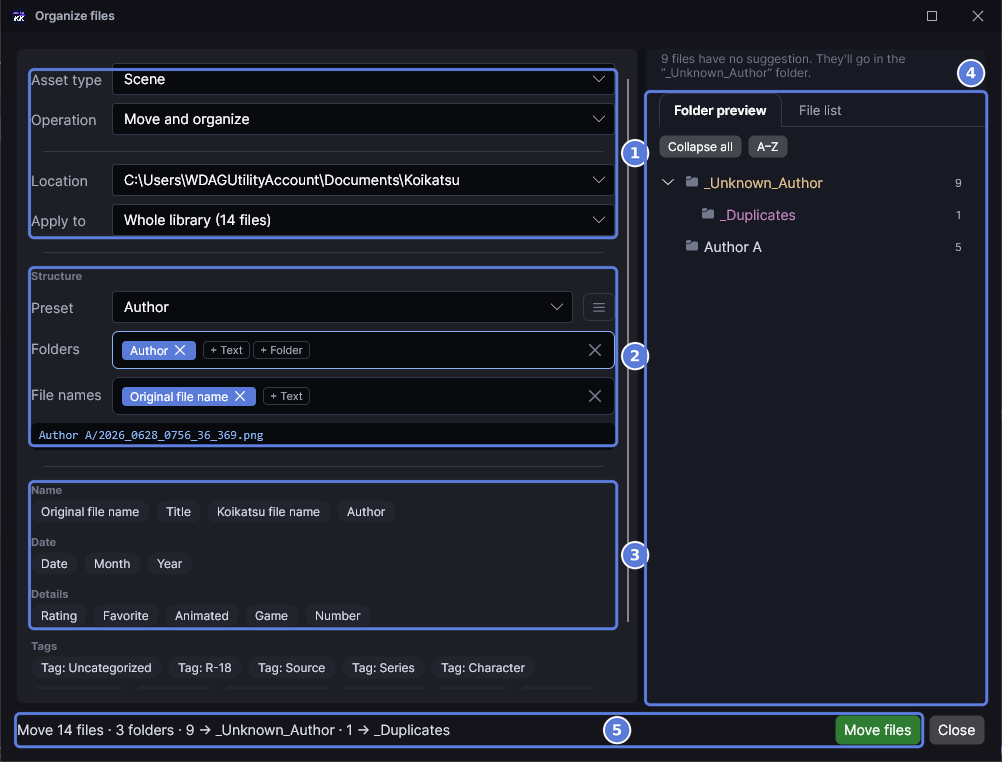
On the left you choose what to organize and where (1). Under Structure (2) you build the folder and file names from the list below it (3), like Author or Year. The preview (4) shows the folders you'll get. The line at the bottom (5) counts the work, and Move files runs it.
What it can do
#Choose the files and the place
#Choose one asset type and where its files go.
- Filtered assets in Apply to takes only what you narrowed the grid to. Trashed, missing and still-analyzing assets are left out.
- Game folder puts files where the game looks (Koikatsu plugin). The game lists cards only in its
femaleandmalefolders, so for cards choose a preset that starts with Gender. - A folder outside your library is added first. Sync checks only library folders, so it can't track a file moved elsewhere (Move files to a folder outside your library).
Name the folders
#Folder and file names come from your library: author, rating, tags, date or character name. Start from a preset, like Author for scenes.
- A tag category makes one folder, named after the file's tags in it joined with
_. - A value the file doesn't have, like a tag, drops its folder.
- Only confirmed authors count. The rest go to
_Unknown_Author, and nameless cards and outfits to_Unknown_Characteror_Unknown_Outfit. Assign now above the preview confirms suggested authors first (Authors).
Keep your files and tags safe
#A move changes only where your library finds each file. Tags, ratings, authors and notes stay with the asset, and no sync is needed.
- Organize never overwrites a file. A second file with the same name gets
(2). - Exact copies go to a
_Duplicatesfolder. The copy left in place is the one Review duplicates marks Recommended. Organize never deletes a copy. - On the same drive, a move is a quick rename that needs no free space. Onto another drive, KK Library copies the file and checks that the copy matches before it deletes the original.
- Folders a move empties are deleted, but never a library folder or the game's own folders.
- Copy as backup copies the files instead, and leaves them where they are.
Undo or stop a run
#KK Library writes each move down in your library file first, so Undo works even after a restart.
- The ✕ beside the progress count stops the run between files. Move files again finishes, and one Undo puts back both.
- Undo doesn't reverse a move made by Locate file.
What the preview shows
#The preview comes from your library, not the disk. The line after the run says what really happened.
- A large library previews its first 2,000 files. Move files still moves them all.
How to do it
#Sort scenes into folders by author
#- Open Tools ▸ Organize files. Asset type starts on the mode you were browsing. Leave Operation on Move and organize.
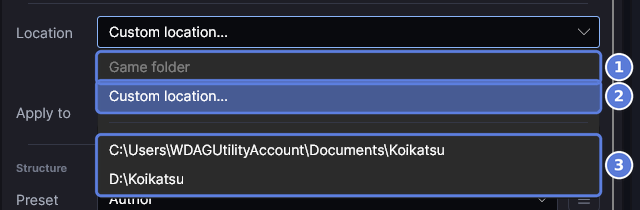
- In Location, choose where the folders go. Game folder (1) stays greyed out until the game folder is set. Custom location (2) takes any folder. A library folder (3) puts the files in that folder.
- Leave Preset on Author.
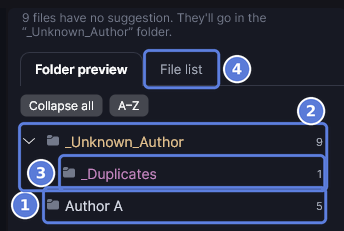
- Read the preview. Scenes with a confirmed author go to that author's folder (1). The rest go to
_Unknown_Author(2), and an exact copy to_Duplicates(3). File list (4) shows each file's new path. Nothing has moved yet.

- The line (1) counts the files and folders.

- Select Move files (1). This moves the files on disk.

- The line (1) says how many files moved.

Undo (1) puts them back (Undo the last move). When every file moved, File Explorer opens the folder. A file the game has open can't move, and a report names it.
Move files to a folder outside your library
#- Open Tools ▸ Organize files and choose what to organize, as above.
- In Location, choose Custom location.
- In the box that reads
Choose a folder…, enter a folder outside your library folders, or select Browse. - Select Move files. Because the folder is outside your library, KK Library asks first.
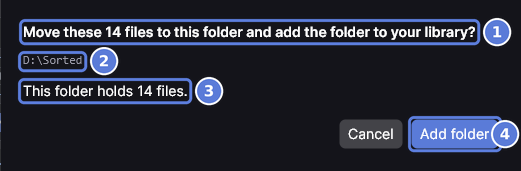
- The question (1) says how many files move. The folder (2) is under it, and the line (3) counts the files the folder will hold.
- Select Add folder (4). KK Library adds the folder, moves the files, then syncs the folder. Files already in it join your library too. Cancel moves nothing.
A folder that sync skips (Settings) is refused.
Build your own folder structure
#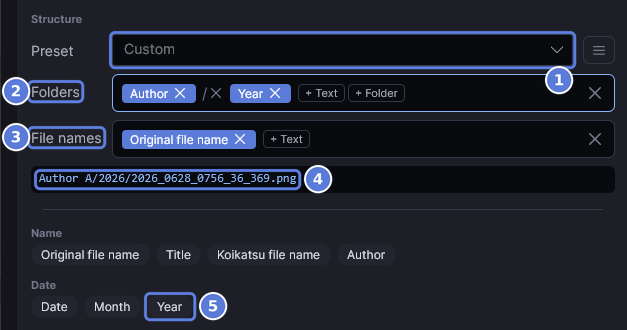
- Under Structure, select a value in the list, like Year (5). It becomes a new level at the end of Folders (2), and Preset (1) reads Custom.
- To put a value in the file name, select inside File names (3) first.
- + Text adds your own words and + Folder a level. Drag anything in a box to move it, or select its ✕.
- The line under the boxes (4) shows where one of your files would go.
- To keep it, select the ☰ button beside Preset, then Save new preset.
Favorite makes a Favorites folder and leaves the rest one level up. Gender reads a card's sex from the card, and an outfit's from the gender you set.
Move files to another drive
#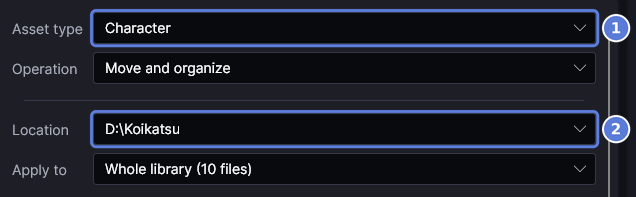
- Open Tools ▸ Organize files and choose Character in Asset type (1).
- In Location (2), choose the library folder on the other drive, or Custom location.

- The line counts the files from another drive (1).
- Select Move files. This takes as long as a copy.
If the drive is short of space, a warning above the preview says so. A file the game has open still moves, and its original is deleted the next time KK Library opens. A move cut off by a crash is finished or undone at the next start.
Back up your files
#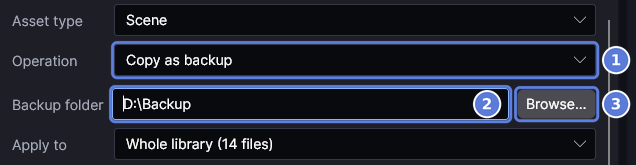
- In Operation, choose Copy as backup (1).
- In Backup folder (2), enter a folder outside your library folders, or select Browse (3).
- Select Copy files. KK Library writes a copy of each file into the backup folder and checks it against its original. Your files and library don't change.
- Run it again later to update the backup. Files already there are skipped.
A backup folder inside a library folder is refused, because the next sync would add the copies as new assets.
Undo the last move
#- Open Tools ▸ Organize files. Undo shows while there is a move to undo, even after a restart.
- Select Undo. It doesn't ask first, and it moves the files back on disk.

- The line (1) says how many files went back.
Undo covers the last run only. A file you changed after the move stays where it is, and so can a file that can't go back. The report names each one. If a drive isn't connected, connect it and select Undo again. A folder the run added stays in your library. Backups have no Undo.
Checked with KK Library 0.1.0-beta.9.1