
Export and import library
KK Library saves the tags, ratings, authors and notes on your Koikatsu scenes, cards and outfits to one file that you can read back on another computer or into a fresh library.
- Where to find it
- File ▸ Export library data and File ▸ Import library data
What it is
#Your tags, ratings, authors and notes stay in your library data, not in the scene, card or outfit files. Export saves this data to one small file. Import reads it and puts each part back on the file it belongs to.
Import matches files by their contents, so it can restore your tags after you move the files or use another computer.
What it can do
#What the export file holds
#It holds what you made in KK Library, never what a sync reads from your files.
- Tags and categories, with their colors, aliases and modes
- Authors, with their aliases, links, merges and deletions
- Your library folders, with each folder's author setting
- For each file: tags, rating, favorite, title and notes, confirmed author, whether you set it as animated, an outfit's Male or Female, whether it is in the Trash and its Added date
Your settings, the Quick List and the edit backups of cards stay behind. The settings include Never suggested as an author, so author suggestions can differ after an import.
Check and choose what comes in
#Export always takes your whole library. Import lists every change before it writes, and you choose which library folders come in (Check what an import changes).
- Clear a library folder's tick to leave it out. Tags and authors always comes in, because the files' tags and authors depend on it.
- A warning says when your library has changes newer than the file, or the file comes from another library or version.
- A Not imported column shows only when something can't come in, like a tag name already in use.
- Import the same file again and nothing changes.
If an import fails
#Right before it writes, import saves a library restore point. If the import fails, nothing changes, but the library folders it added stay. Find the restore point in Settings under Library restore points, named with before-import.
How import finds your files
#Import first checks each file's full contents. If that does not match, it checks the file's path inside its library folder and its size.
- When the contents match, imported data replaces the current data, including empty values.
- A file found only by path, like a card you edited after the export, only gains data.
- When two files fit equally, neither gets the data. Files the export file doesn't name keep theirs.
- Not found counts files that aren't on this computer. It is not a missing file. Copy the file over and import again.
- Export and import don't run during a sync. Export also waits until a stopped sync has been run to the end.
How to do it
#Save your library data to a file
#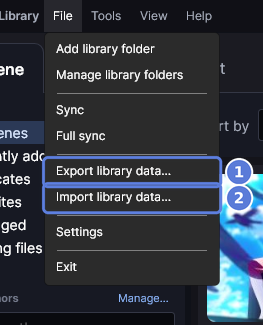
- Select File ▸ Export library data (1).
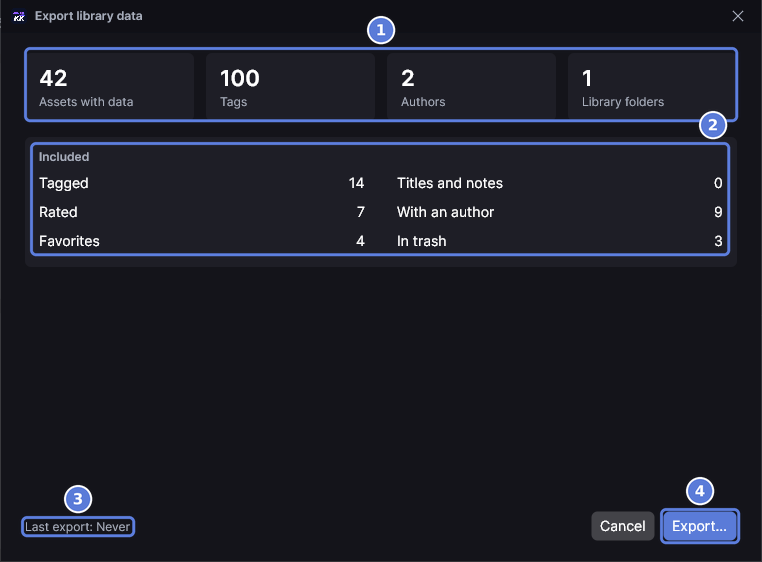
- The counts (1) and Included (2) show what the export file will hold.
- Last export (3) shows when you last exported, or Never.
- Select Export (4). The Windows save window opens.
- Choose a folder, then select Save. The suggested name carries today's date.

- The window shows Export complete (1) and where the file is (2). Select Show in folder (3) to open the folder in File Explorer, or select Close.
To keep your library data safe from a broken drive, save the export file on another drive.
Move your tags to another computer
#- On the new computer, copy your scenes, cards and outfits into the same folders they had, like
D:\Koikatsu. Copy the export file over too. - Open KK Library, select File ▸ Import library data and choose the export file. The import window opens.
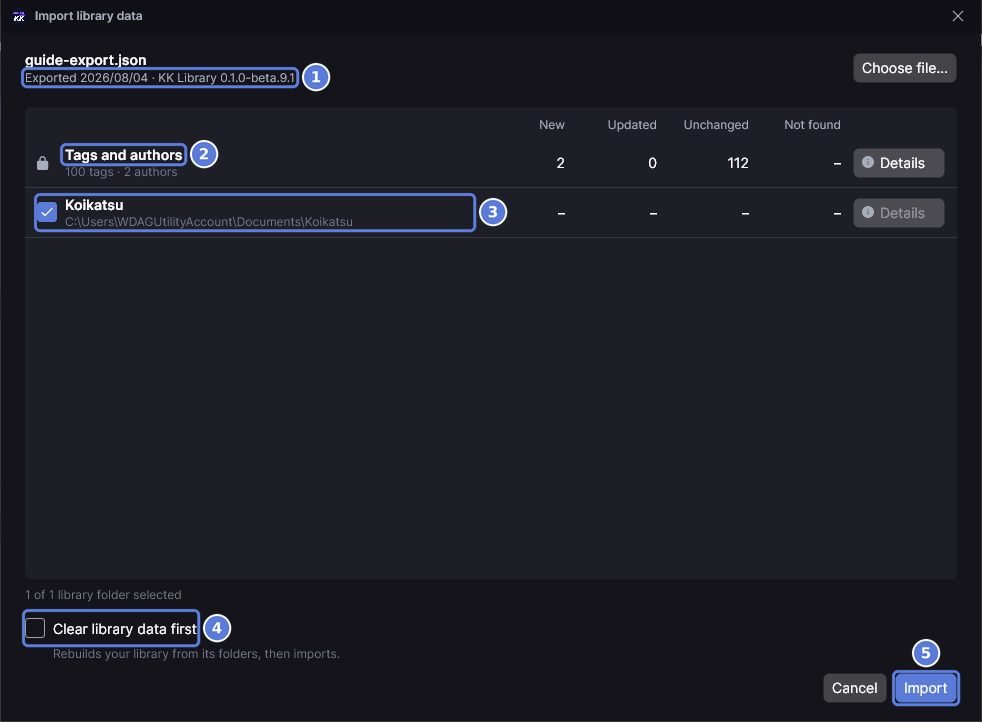
- The top line (1) shows when the file was exported and by which version of KK Library.
- Tags and authors (2) always comes in. Each library folder in the file has a row with a tick (3). A row that shows only a path is a folder Import adds to your library. Its counts read – and its Details is off until the folder is synced.
- Leave Clear library data first (4) off.
- Select Import (5). KK Library adds the ticked folders and syncs them in this window. The sync only reads your files. Then KK Library imports at once.
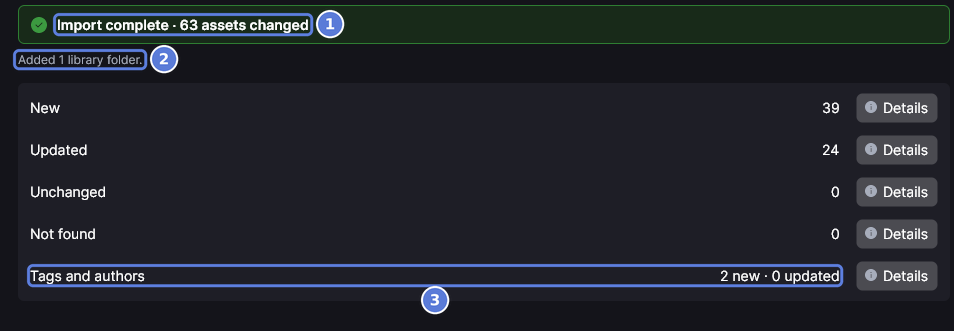
- The window shows Import complete with how many assets changed (1), and how many library folders it added (2). Select Details on a row, like Tags and authors (3), to see each change.
If you put the files in other folders, add those folders first and let the sync finish. Each row then shows its new path with the old one beside it.
To stop the sync, select Cancel. The added folders stay in your library, and the next Import syncs what is left.
Check what an import changes
#- Select File ▸ Import library data and choose the export file.
- Read the table. New counts files with no library data here yet. Updated counts files the import sets or clears something on. Unchanged counts files that already match.
- Not found counts files in the export file that aren't on this computer.
- Select Details at the end of a row. The list of that library folder's files opens on Updated, with what the import sets or clears on each file.
- Select All, New, Unchanged or Not found above the list, or search for a file by name.
- Select Details on Tags and authors to see each tag, category and author with its changes.
- To leave a library folder out, clear its tick. Nothing changes until you select Import.
Rebuild your library and keep your data
#A library used through many versions can carry old leftovers. Clearing keeps what the export file holds and rebuilds the rest from your files.
- Export your library data, so the export file is up to date.
- Select File ▸ Import library data and choose that file.
- Turn on Clear library data first. Import becomes Clear and import.
- Select Clear and import. Clear library data and import? lists what is lost: assets not in the file, assets in library folders you didn't tick and changes made after the export date.
- Select Clear and import again. KK Library restarts, syncs your library folders into an empty library, then imports.
Your library file from before the clear becomes the restore point. If the import fails, KK Library restarts and puts it back. If you cancel before the import runs, Stop the import? asks first. Stop and restore library brings back your library as it was before the clear. Stop only keeps the rebuilt library with nothing imported.
The next time KK Library opens after the import, it sends the edit backups of cards to the Windows Recycle Bin.
Checked with KK Library 0.1.0-beta.9.1