
Koikatsu plugin
KK Library loads a scene, character card or outfit into Koikatsu's CharaStudio or character maker through a small plugin.
- Where to find it
- File ▸ Settings ▸ Game integration, and CharaStudio and Edit in Koikatsu in the inspector
What it is
#KK Library uses its plugin to ask the game to load a file from its current location. It doesn't copy the file into the game.
The plugin loads files in CharaStudio and the character maker. Other screens, such as Free H, choose characters their own way, so the plugin doesn't load files there.
What it can do
#Where each asset loads
#Scenes load in CharaStudio. Cards and outfits load in CharaStudio or the character maker.
- In CharaStudio, a card adds a character or replaces the one you selected. An outfit dresses the selected character.
- Anywhere else in the main game, like the title screen or Free H, a card or outfit waits until you open the character maker.
- Load Asset Settings chooses which parts of a card or outfit load.
- Dragging from the Quick List works too, with a few differences.
The plugin in your game
#Koikatsu and Koikatsu Sunshine each get their own plugin file in the game's BepInEx\plugins folder.
- It needs BepInEx and the Modding API (KKAPI or KKSAPI), which most modded games have. A game with no mods can't load it, but KK Library still reads all your files.
- KK Library checks the plugin when it opens and before each load. If it needs to replace the plugin, it waits until you close the game.
- Choosing the game folder also adds
UserData\Studio\scene,UserData\chara\female,UserData\chara\maleandUserData\coordinateto your library (Remove a library folder).
Load before the game is ready
#If the game is closed, KK Library asks, then opens it. The plugin loads the file once the game is ready.
- Wait for a starting game in Settings sets how long KK Library waits, from 1 to 4 minutes.
- If you load something else meanwhile, the newer one takes its place.
- Don't ask again stops a question. To get it back, turn on Ask before KK Library opens the game or Ask before a new scene replaces the one open in CharaStudio in Settings.
See what the game is doing
#
The left end of the status bar shows the game's state (1). It reads No game open until you open a game, and Connected to CharaStudio once CharaStudio is ready. Every 2 seconds, KK Library checks whether the game is open, loaded the plugin and answers.
- A modded game can take minutes to start, and the state reads CharaStudio is starting until it's ready. It turns red only when something is certainly wrong (When nothing loads).
- A Windows notification says when a load from a button finishes. Turn it off with Show notification when a file finishes loading in the game. None shows while the panic key hides KK Library.
- The game shows short messages, like KK Library: scene loaded., in KK Library's language.
How to do it
#Install the plugin
#
- Close Koikatsu and CharaStudio. An open game holds the plugin file.
- Open File ▸ Settings and select Game integration.
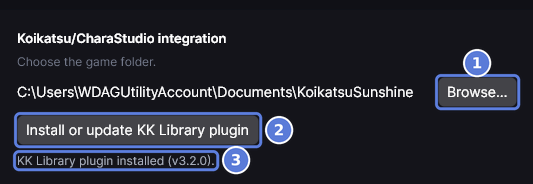
- Select Browse (1) and choose the game folder, the one that holds
CharaStudio.exe. KK Library copies its plugin intoBepInEx\plugins. - Check the line under the buttons (3). It reads KK Library plugin installed and the version.
- If the plugin is ever missing, select Install or update KK Library plugin (2).
If the line says the folder doesn't look like a Koikatsu install, choose the folder that holds both CharaStudio.exe and BepInEx. You can also choose the game folder in the first setup (Get started).
Load a scene in CharaStudio
#- Choose Scene and select a tile.
- Select CharaStudio in the inspector.
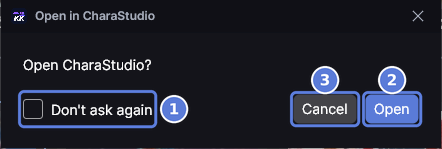
- If CharaStudio is closed, KK Library asks Open CharaStudio? Select Open (2). To stop the question, turn on Don't ask again (1) first. Cancel (3) stops the load.
- If CharaStudio's scene has anything in it, KK Library asks before replacing it. Select Replace. The status bar then reads Scene loaded in CharaStudio.
To add a scene to the open one instead, right-click its tile and choose Import into current scene.
Load a card or outfit in CharaStudio
#
- Open CharaStudio and your scene.
- To replace a character, select it in CharaStudio. To add one, select nobody.
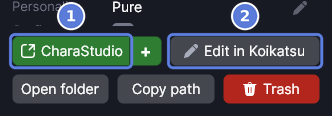
- In KK Library, choose Character, select a card and select CharaStudio (1). A replaced character's place and pose stay, so an animated scene keeps playing.
- To dress a character, select them in CharaStudio. Then select an outfit in KK Library and select CharaStudio.
With CharaStudio closed, an outfit's CharaStudio button only opens it, because nobody can be selected yet. Select a character, then select the button again. If CharaStudio is open with nobody selected, KK Library says so.
Load a card or outfit in the character maker
#- Select a card or an outfit and select Edit in Koikatsu.
- If the game is closed, select Open when KK Library asks. The game opens the maker that matches the card.
- For an outfit whose Gender is Any, choose Female or Male when KK Library asks (Set who an outfit is for).
- At the title screen, the card waits until you open the character maker.
- If you save over the card in the maker, KK Library reads the file again at once.
A card in the other gender's maker keeps the card's gender, but the maker's sliders stay those of the gender it opened in, so some won't fit. An outfit for the other gender gets a Different gender question. It usually still loads, but some clothes may fall back to a default item.
Choose which parts of a card or outfit load
#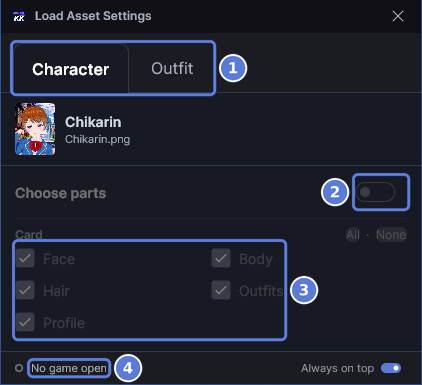
- Open the game first. The game keeps these settings, so the parts stay locked until KK Library connects. The game's state (4) says when it has.
- Open View ▸ Load Asset Settings.
- Select Character or Outfit (1).
- Turn on the switch beside Choose parts (2). With it off, the whole card or outfit loads.
- Turn off the parts you don't want (3). Turn off Outfits to keep the clothes the character has on.
Every later load uses these settings, from a button or a drag. A change in the game's own load screen shows here too. The Outfit tab needs the Coordinate Load Option mod. Without it, outfits load whole and the tab says so.
When nothing loads
#In Free H and the game's other screens, a card or outfit waits until you open the character maker (Where each asset loads). Otherwise, read the game's state at the left of the status bar:
- Choose your game folder. Select it to open Settings.
- Game folder not found. The folder moved or its drive is unplugged. Choose it again.
- Can't install the plugin in the game folder. Select Install or update KK Library plugin in Settings to see why.
- Restart CharaStudio. The open game has an older plugin, or none. Close it and load again. KK Library updates the plugin before it opens the game.
- CharaStudio didn't load the KK Library plugin. Check that the Modding API is installed and up to date. BepInEx's log in the game folder says why.
- KK Library can't connect to CharaStudio. Something on your computer, like a firewall or an antivirus, refuses the connection.
If the game takes longer than Wait for a starting game, KK Library says CharaStudio didn't become ready in time. Load again once the game is up, or choose a longer time.
Checked with KK Library 0.1.0-beta.9.1