
Similar and duplicates
KK Library finds exact copies and look-alike Koikatsu scenes, cards and outfits in your library, so you can move the ones you don't need to the Trash.
- Where to find it
- Tools ▸ Review duplicates, Tools ▸ Find similar and Similar scenes in the inspector
What it is
#A large library can collect copies: a scene downloaded twice, a card saved again or an outfit (coordinate card) on two drives. KK Library finds them when it syncs.
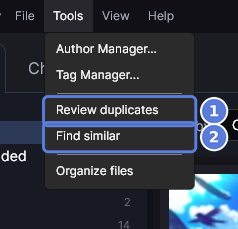
Review duplicates (1) lists files that are exactly the same. Find similar (2) lists files that are alike, like a card the game saved again or a scene released twice.
What it can do
#Choose which copy to keep
#KK Library marks one copy in each group Recommended. You can choose another copy to keep.
- It avoids folders named
_autosave,trash,temp,tmp,cache,recycleor$recycle.bin. - It prefers a copy with a tag, rating, favorite or confirmed author. If those are equal, it prefers the oldest Updated date. Copying, moving or extracting a ZIP keeps that date. A new download gets a new date.
- The name, folder and drive never count. Organize files keeps the same copy.
Keep your tags when copies go
#When Review duplicates moves copies to the Trash, the copy you keep gets their tags and favorite. It becomes R-18 if any copy was. It gets a missing title, author or Quick List place from the first copy moved. Notes from the copies are joined. Restored copies keep their original data. Find similar doesn't copy data when it moves files to the Trash.
Set how alike files must be
#The Similarity slider in Find similar ranges from 70% to 95%. It starts at 75% each time you open the window.
- On the Scene and Outfit tabs, a group is one file and the files like it. The heading's % is their average match with that first file.
- On the Character tab, groups chain: when card A is like B and B is like C, all three share a group.
What each tool compares
#Each kind of file is compared in its own way, and only with files of its own game.
| Tool | Compares | Doesn't compare |
|---|---|---|
| Review duplicates | Every byte of the file, so one changed byte makes a different file | The name and the folder |
| Find similar, scenes | The picture (65% of the score), the mods the scene needs (25%, a rare mod counts for more), the map (5%) and the number of characters (5%). Scenes whose characters hold exactly the same poses score at least 97% | Who the characters are, Timeline animation, props, the camera and lights |
| Find similar, character cards | The face and body sliders, only between cards of the same gender | The picture (it can be any art), the name, the clothes and for now bone edits (ABMX), so rows say bones unavailable |
| Find similar, outfits | The clothes, item by item | Colors, the picture, the name and accessories, which are mostly hair pieces |
Two scenes can share a picture and still be different. A scene file contains a picture and scene data. A new release can keep the picture but change the animation, characters, props or mods. The picture alone never makes a match. Even an identical picture scores only 65%, below the slider's lowest setting. Check both scenes before moving one to the Trash.
How to do it
#Delete exact copies
#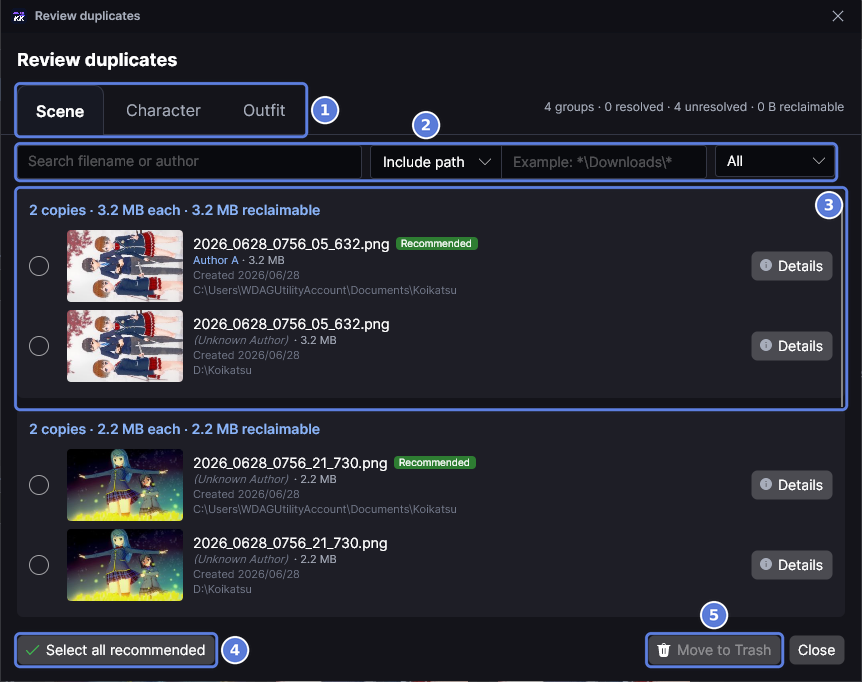
- Open Tools ▸ Review duplicates.
- Choose the Scene, Character or Outfit tab (1). Each group (3) holds the copies of one file. The bar (2) narrows the list, as in Delete the copies on one drive.
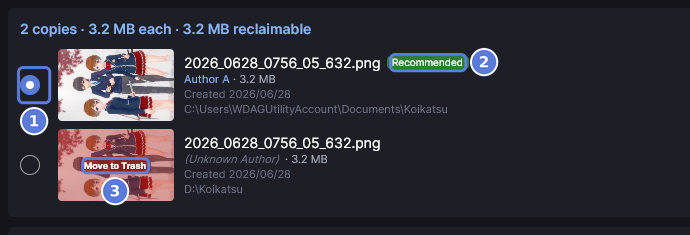
- In each group, select the circle beside the copy to keep (1). Recommended (2) is KK Library's suggestion. The other copies show Move to Trash (3). Select the circle again to undo.
- To keep the recommended copy in every undecided group on screen, select Select all recommended. Your own choices stay.
- Select Move to Trash. Every group you decided sends its other copies to the Trash, also groups the bar hides now. Undecided groups stay, and the files stay on disk.

- The line beside the buttons (1) says how many copies moved.
Delete the copies on one drive
#Use this when one drive, like a downloads drive, holds only spare copies.
- Open Tools ▸ Review duplicates and choose a tab.
- Leave Include path chosen. In the box that reads
Example: *\Downloads\*, enter a pattern for the drive, likeD:\*, and press Enter.

- The pattern becomes a chip (2). Only the groups with a copy on that drive stay.
- In each group, select the circle beside the copy that is not on that drive. Select all recommended can choose the copy on the drive you are clearing, because the drive never counts.
- Select Move to Trash.
- Select the ✕ on the chip when you are done. Until then it stays on this tab in both windows.
Find similar scenes
#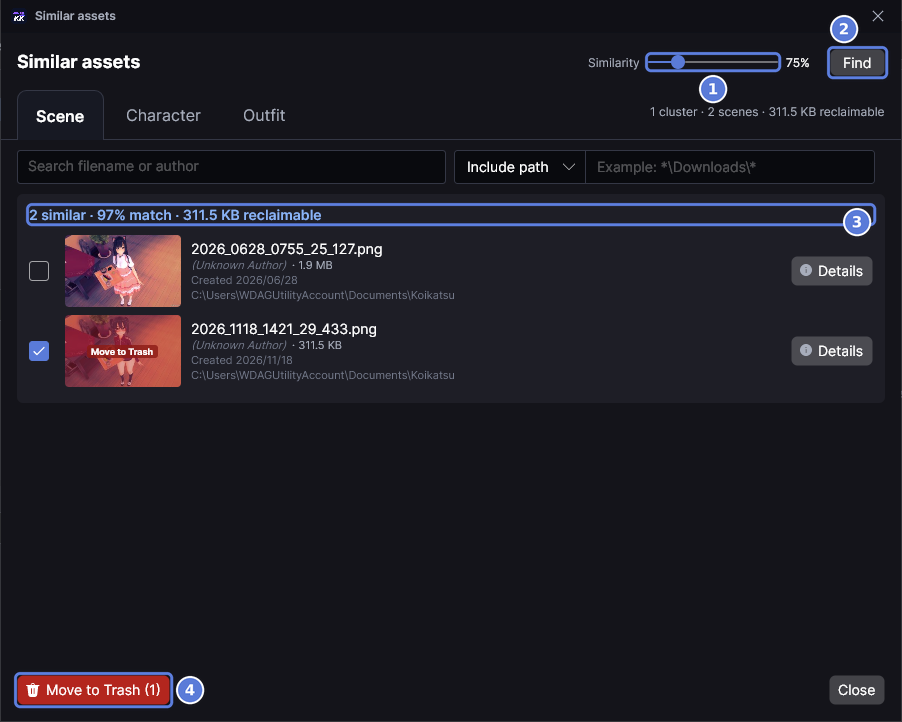
- Open Tools ▸ Find similar and choose the Scene tab. The list fills in on its own.
- To change how alike scenes must be, move the Similarity slider (1) and select Find (2).
- Each heading (3) gives the number of scenes, how closely they match and the space you can get back. The groups that free the most space come first.
- Select the box beside each scene you don't need. Here a check marks a file that goes.
- Select Move to Trash (4). The files stay on disk.
The window may say Similarity data isn't ready yet. Then select Sync ▸ Full sync and open it again.
Find the same character on several cards
#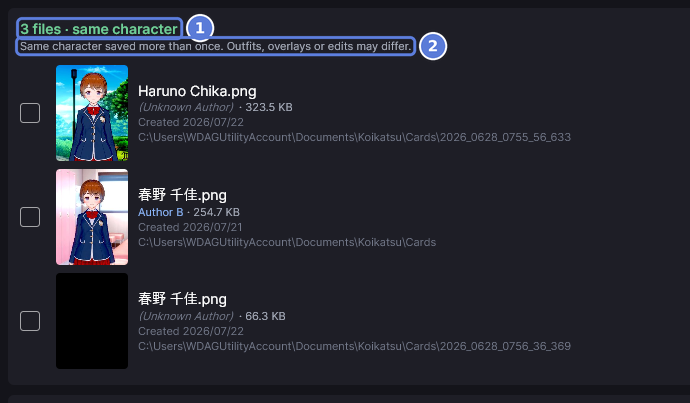
- Open Tools ▸ Find similar and choose the Character tab.
- A heading that ends in same character (1) means the cards have exactly the same face, body and hair. These groups come first.
- The line under it (2) says outfits, overlays or edits can differ. To check a card, select Details.
- Select the box beside each card you don't need, and select Move to Trash.
Find variations of an outfit
#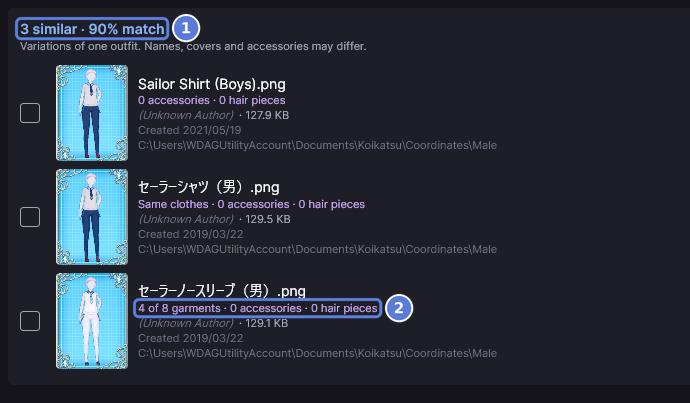
- Open Tools ▸ Find similar and choose the Outfit tab. The groups most alike come first, and one group can hold outfits with the same clothes and variations.
- To find one outfit's group, enter its file name in the box that reads
Search filename or author. - The heading (1) gives the number of outfits and how closely they match. From the second row on, each line starts with Same clothes, or with how many garments match the first outfit, like 4 of 8 garments (2).
- Select the box beside each outfit you don't need, and select Move to Trash.
Find scenes like the one you selected
#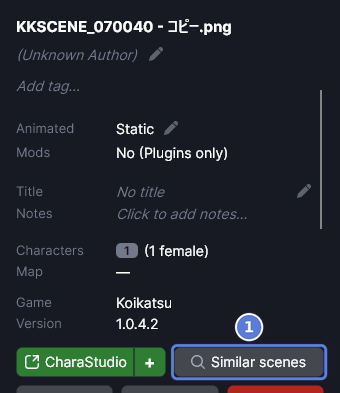
- Select a scene in the main grid.
- Select Similar scenes (1) in the inspector. The grid goes back to all your scenes and clears your search.

- The grid shows only the scenes like it, the selected scene included. The search bar shows a Similar to chip with the scene's file name (1).
- Select the ✕ on the chip to see your whole library again.
The button compares scenes the way Find similar does at 75%. The status bar may say Run Sync first to prepare similarity data. Then select Sync and try again.
See every file that has a copy
#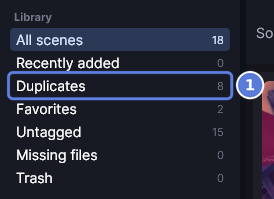
- Choose Scene, Character or Outfit at the top of the main window.
- Select Duplicates (1) in the Library list in the sidebar. The grid shows every file that has an exact copy. The number counts each of those files, so four pairs show as 8. Choose which to keep in Review duplicates.
Checked with KK Library 0.1.0-beta.9.1