
Character cards
KK Library reads and changes the profile saved in a Koikatsu character card, restores the original card and extracts its outfits.
- Where to find it
- The inspector in Character mode
What it is
#A character card is a PNG file that contains a picture and a character's data. KK Library reads the profile when it syncs, so you can see it without opening the game. The labels match the character maker.
Changes go into the card file, so Koikatsu and CharaStudio load the updated card. Tags, author and rating stay in your library.
What it can do
#Read and change a profile
#The inspector shows a card's profile, and you can change all of it except Gender and the Outfits count.
- Personality shows on female cards only, as in the game.
- If you saved the card in the game since KK Library last read it, KK Library doesn't write over it. It says This card changed on disk. Run Sync and try again.
Get the original card back
#Before your first change, KK Library saves an edit backup of the card.
- Restore original replaces the whole file with that copy. Anything saved into the card since is lost, including saves from the game.
- KK Library clears old edit backups after a while. To clear them all now, use Settings.
Outfits inside a card
#A card holds an outfit for each game slot, such as School 1. Extract outfits saves each as a separate file.
- The card is only read, and a new file never writes over another. A name that is taken gets
(2)at the end. - Each outfit is for the card's gender. Its file name ends in
(Female)or(Male), and its Gender is set to match (Set who an outfit is for). - Each file gets a plain female or male picture, because a card holds no picture of each outfit.
Where the new outfits go
#Extracted outfits go in a folder named after the character, inside the folder you chose last time. Until you choose one, that is the game's UserData\coordinate folder.
- The character maker's own list doesn't show that folder (Show extracted outfits in the character maker). CharaStudio and the Edit in Koikatsu button do (Koikatsu plugin).
- Outfits saved in a library folder join your library at once.
How to do it
#Read a card's details
#- Choose Character at the top of the main window.
- Select a card in the grid.
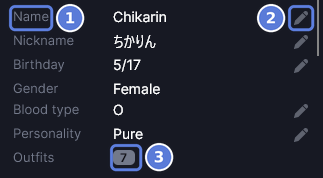
- Scroll the middle of the inspector to Name (1). The profile follows it, down to Outfits (3), which counts the outfits the card holds.
- Scroll further to see Club, Weak point and Voice pitch.
A pencil (2) beside a detail means you can change it.
Rename a character or change its profile
#- Select a card in Character mode.
- Select the pencil beside the detail you want to change, or select the value itself.
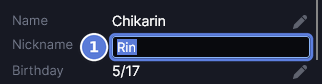
- Enter the new value in the box (1). Name opens two boxes, Last name and First name, and Birthday opens a month and a day. Voice pitch opens a slider and a box, and letting go of the slider writes the card at once.
- Press Enter. KK Library writes the card, and the status bar says Card updated.
- For Blood type, Personality, Club and Weak point, choose from the list instead. KK Library writes the card as soon as the list closes.
To stop without a change, press Esc while Panic key is off (Panic mode). KK Library doesn't save a change during a sync, so let it finish first.
Restore the original card
#- Select the card you changed.
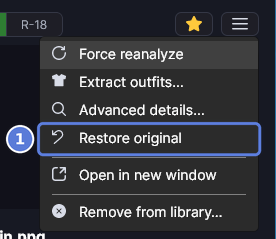
- Select More actions at the top of the inspector, then Restore original (1). It shows only while the card differs from its edit backup.
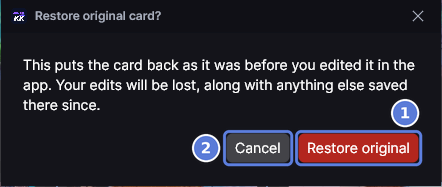
- KK Library asks Restore original card? Select Restore original (1) to put the card back, or Cancel (2) to keep it as it is.
The status bar then says Original restored. The edit backup stays, so you can change the card and restore it again until the backup is cleared.
Extract outfits from cards
#- Select a card in Character mode.
- Select More actions at the top of the inspector, then Extract outfits.
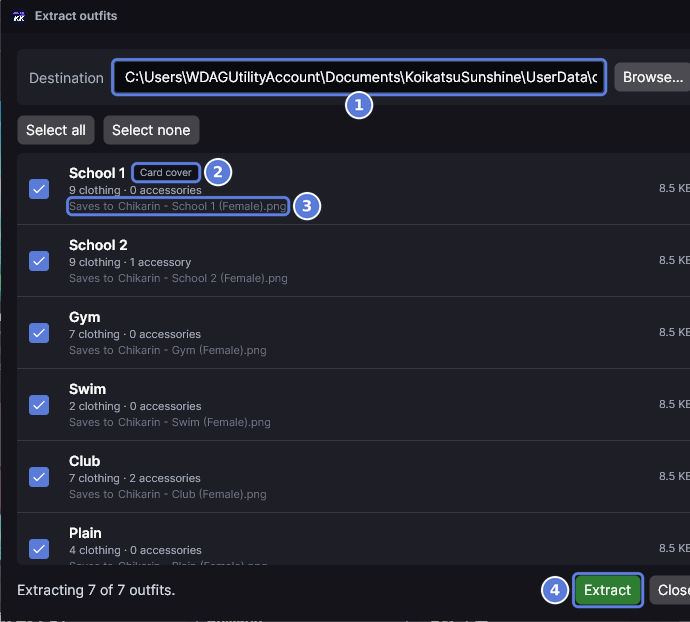
- Check the folder in the Destination box (1). The box may be too narrow to show the whole path. To use another place, select Browse and choose where the character's folder goes.
- To leave an outfit out, select its row to clear its check box. Every outfit starts selected, and Card cover (2) marks the one on the card's picture.
- Read the Saves to line under each outfit (3). It names the new file, like
Chikarin - School 1 (Female).png. - Select Extract (4). KK Library writes the new files, and File Explorer opens on the folder. To leave without writing anything, select Close instead.
Show extracted outfits in the character maker
#- Open Extract outfits for the card (Extract outfits from cards).
- In the Destination box, delete the character's folder name at the end, so the path ends at
UserData\coordinate. - Select Extract.
- Open the outfit list in the character maker. The new outfits are in it.
To fix outfits you already extracted, move them from the character's folder into UserData\coordinate.
Checked with KK Library 0.1.0-beta.9.1