
Mods
KK Library shows which mods a Koikatsu scene, character card or outfit needs, which of them are missing and where to look for them.
- Where to find it
- Mods and Mod dependencies in the inspector
What it is
#Many scenes, character cards and outfits use items from mods, like clothes, hairstyles or studio props. If a mod isn't in your game, the game can't show its items. KK Library shows which mods a file needs and which are missing, before you open it in the game.
When the game saves a file, it records an ID for each mod the file uses. KK Library reads these IDs when it syncs, so it can show required mods without opening the game. Some files also include a mod's name, author and website. You may see those details even when the mod isn't installed.
What it can do
#The Mods line
#The Mods line near the top of the inspector sums it up.
- Yes: the file needs mods. A green tick beside it means you have them all. A warning sign means some are missing.
- No (Plugins only): no mods, but plugin data such as a Timeline animation. The game opens the file without those plugins, but leaves out what they added.
- No (Vanilla): the file needs only the game.
- No: no mods, but KK Library couldn't tell whether the file holds plugin data.
Missing mods
#Mod dependencies lists the missing mods first, each with a red ✕, then the installed ones by name.
- Search for this mod opens the website the file names, or a Google search for the mod.
- KK Library doesn't download or install mods. You copy them into the
modsfolder yourself. - To find every asset that needs mods, use the Mods filter (Search).
Installed mods
#Installed mods have a green ✓. Two kinds show a note when you point at their row.
- Koikatsu only: a mod made for Koikatsu, on a Koikatsu Sunshine asset. It counts as installed, with a warning sign instead of the ✓.
- from an older version: a newer mod you have replaces this one, so it counts as installed.
- To copy a mod ID, select its text and press Ctrl+C.
- A list you close stays closed after you restart KK Library.
How KK Library knows which mods you have
#KK Library reads the mod ID in each mod file in the mods folder of your game folder, subfolders included.
- A mod counts as installed when a file there has its mod ID. KK Library doesn't check that the mod works.
- Only mods are checked, not BepInEx plugins like Timeline or MaterialEditor.
- Without a game folder, the list shows which mods a file needs, not which ones you have.
- Reading every mod file takes a while, so KK Library keeps the list of your mods. It checks the folder again by itself after a sync or when you select a file that needs mods. It does this at most once per launch, and not within 24 hours of the last check. So select Sync mods after you install one.
How to do it
#See which mods a file needs
#
- Select a scene, character card or outfit in the grid.
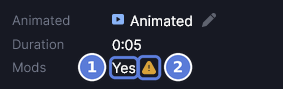
- Read the Mods line (1) in the inspector. Yes means the file needs mods.
- Point at the sign beside it (2). A warning sign reads Some mods are missing. A green tick reads All mods installed.
- Select the Mods line to go to the list of mods at the bottom of the inspector.
Find a missing mod
#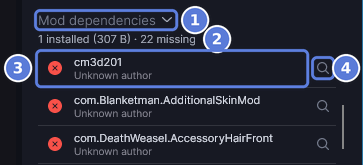
- Select the asset's Mods line. The inspector scrolls to Mod dependencies (1).
- Read the line under it (2). It counts the mods you have installed, with the space they take on disk, and the mods that are missing.
- Find the missing mods at the top of the list (3). Each one shows its mod ID, and under it the author, or Unknown author when the file names none.
- Select Search for this mod (4). Your browser opens the mod's website, or a Google search for the mod.
Check that a mod is installed
#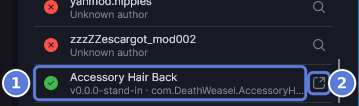
- Scroll to the end of Mod dependencies. The installed mods come after the missing ones.
- Find the mod with a green ✓ (1). It shows the mod's name, and under it the version and mod ID of the mod you have.
- Select Show in Explorer (2). File Explorer opens the folder that holds the mod's file.
Close the mod list
#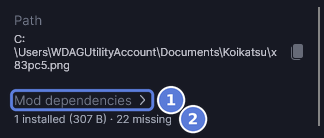
- Select an asset that needs mods, then its Mods line. The inspector scrolls to Mod dependencies.
- Select the Mod dependencies heading (1). The list closes in every inspector. The line under the heading stays (2), so you can still see how many mods are missing.
- To open the list again, select the heading again.
Sync mods after you install them
#- Copy the new mod files into the
modsfolder of your game folder. - Select the arrow beside Sync and choose Sync mods. Get started shows the menu. KK Library only reads the
modsfolder and changes nothing in it.

- Wait for the status bar to read Mods synced and how many mods are installed (1).
- Look at the inspector. KK Library checks the selected asset again, so a mod you just installed now shows a green ✓.
Checked with KK Library 0.1.0-beta.9.1