
Scenes
KK Library shows whether a Koikatsu scene is animated and how long it plays, and extracts the characters in a scene as character cards.
- Where to find it
- The inspector in Scene mode
What it is
#A scene is a PNG file that contains a CharaStudio scene. KK Library reads it during sync, so you can check it without opening the game.
The scene also contains each character's card data. Extract characters saves each character as a separate card.
What it can do
#Animation, length and mods
#The inspector shows how a scene plays and what it needs.
- Animated reads Animated when the scene moves and Static when it doesn't. An animated scene's tile also has a badge (Library).
- Duration is how long one loop of an animated scene plays, like
1:30. - Mods shows whether the scene needs mods. Mods explains the list.
- To sort or narrow scenes by animation or length, see Sort the grid and Advanced filters.
Correct the Animated row
#Mark a scene Animated or Static yourself when KK Library reads it wrong. The row then shows (manual), and the tile's badge, the sort and the filters follow your choice.
- Auto (detected) goes back to what KK Library found in the file.
- Duration hides while you have marked the scene by hand.
Clear leftover animation data
#When you mark a scene Static, KK Library can remove its Timeline data. The scene still opens in CharaStudio without that data.
- Restore animation data puts the data back into the file.
- KK Library keeps what it took out for 90 days. When the kept data passes 250 MB, the oldest goes sooner. To clear it now, use Removed animation data in Settings.
Characters inside a scene
#Extract characters saves the characters in a scene as character cards, without the game. The scene is only read.
- Each new card's picture is the face picture the game saved inside the scene. A character without one shows no preview in the list.
- A character placed twice in the scene is listed twice, because CharaStudio saves each copy separately.
- A new file never writes over another. A name that is taken gets
(2)at the end.
Why a scene can read wrong
#KK Library reads the scene file. It doesn't play the scene to check its movement or length.
- It reads Animated when it finds Timeline keyframes, the poses Timeline moves between. The game's built-in animation loops leave nothing in the file, so a scene that moves only that way reads Static.
- When an author saves a new scene from an animated one, Timeline keeps the old keyframes, even unused ones. So the scene reads Animated when nothing moves.
- Duration is the length the author set in Timeline's own window. KK Library doesn't work it out from the animation. A keyframe placed after the end never plays, and Timeline's speed setting changes how fast it plays. A scene left at Timeline's starting length shows
0:10.
How to do it
#Check if a scene is animated
#- Choose Scene at the top of the main window and select a scene.
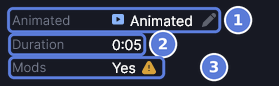
- Read the Animated row (1). It reads Animated or Static.
- Read Duration (2) under it. It shows only on an animated scene with a length.
- Read Mods (3) to see whether the scene needs mods.
Mark a scene animated or static
#- Select the scene.
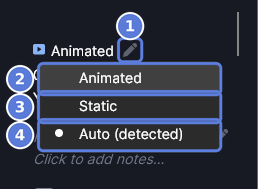
- Select the pencil beside Animated (1).
- Select Animated (2) or Static (3). To go back to what KK Library found in the file, select Auto (detected) (4).
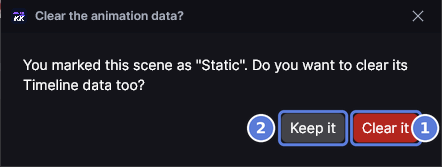
- If you chose Static and the scene holds Timeline data, KK Library asks Clear the animation data? Select Clear it (1) to take the data out of the scene file. Keep it (2) changes only the row.
- To put the data back, select the pencil again, then Restore animation data. KK Library writes the data back into the scene file, and the scene reads Animated again.
Extract characters from scenes
#- Select the scene.
- Select More actions at the top of the inspector, then Extract characters.
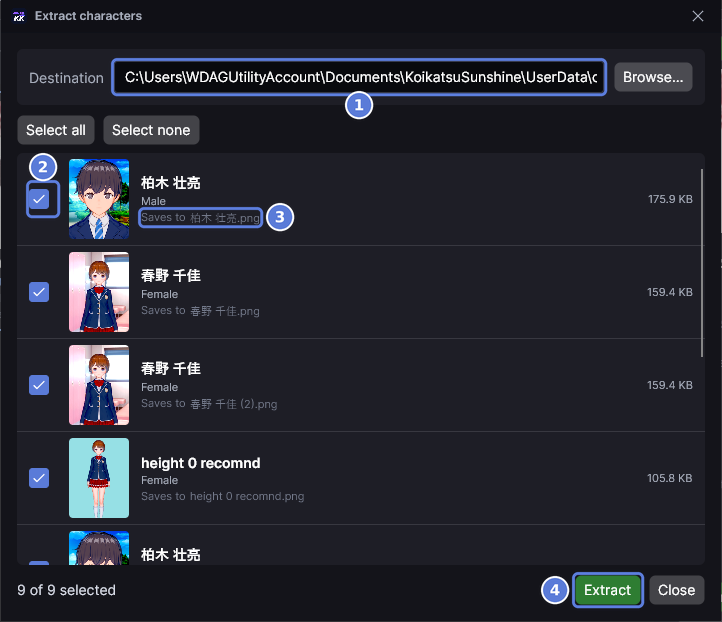
- Check the folder in Destination (1). KK Library suggests a new folder named after the scene. It sits in the game's
UserData\charafolder, or in the folder you chose last time. To choose another, select Browse. - Turn off the check box (2) of each character you don't want. Every row starts ticked.
- Read the Saves to line (3) under each name. It shows the file name each card will get. Here the scene holds 春野 千佳 twice, so the second card is
春野 千佳 (2).png. - Select Extract (4). KK Library writes the new card files and opens their folder. If that folder is in a library folder, the cards are added to your library and show in Character mode.
Close shuts the window without writing anything. To undo an extract, select the new cards in Character mode and move them to the Trash.
Checked with KK Library 0.1.0-beta.9.1