
Tags, ratings and favorites
KK Library lets you tag your Koikatsu scenes, character cards and outfits, rate them Safe or R-18 and star your favorites, so you can find them again.
- Where to find it
- The inspector and Tools ▸ Tag Manager
What it is
#Add tags to your Koikatsu scenes, character cards and outfits (coordinate cards) to find them again. Rate each asset Safe or R-18, or star favorites for quick access.
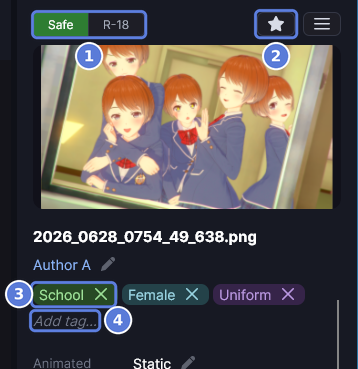
In the inspector, select Safe or R-18 (1) to set a rating, or select the star (2) to make a favorite. Tags appear as chips (3). Select Add tag (4) to add one. These details stay in your library, not in the file, so they aren't included when you share it.
What it can do
#Tags and categories
#Every tag sits in a category, and the category gives it its color.
- A new library comes with categories and tags in English and Japanese, like Location and Clothes.
- A tag with no category is under Uncategorized.
- To make a tag in a category, type the category first, like
series:Nagatoro. - A category's color can be one of 12 swatches, a custom color or a code like
#4A7BD8. - Deleting a category moves its tags to Uncategorized. The assets keep them.
Find, rename or delete a tag
#A tag can have a name in each language and aliases. A change reaches every asset that has it.
- Find a tag by any of its names. Spaces don't matter, so
swim suitfinds Swimsuit. - Right-click a tag's chip in the inspector to Rename tag or Delete tag everywhere. In the sidebar's Tags panel, right-click it and choose Edit or Delete.
- To find assets by tag or rating, use the search bar.
Ratings and favorites
#A rating says whether an asset's picture is Safe or R-18, and only R-18 blurs it.
- An asset with neither is Unrated. KK Library never guesses a rating.
- The tags in the R-18 category say what happens in a scene. They blur nothing.
- Favorites in the sidebar lists your favorites.
Which modes a tag shows in
#A tag shows in the modes it fits: Scene, Character, Outfit or any mix.
- Elsewhere, it stays out of the Tags panel and search.
- A tag you make in the inspector shows only in that mode, until you add it in another. One you make in Tag Manager shows in all.
- Turning a mode off never takes the tag off an asset, and its inspector still shows it.
When a file moves or is copied
#Tags, ratings and favorites belong to one file and follow it.
- They stay when the game saves the file. They also stay when you rename it or move it to another library folder, even in File Explorer. KK Library finds it at the next sync (how).
- A copy you make in File Explorer is a new asset with no tags. When Review duplicates moves copies to the Trash, the copy you keep takes their tags.
- The Trash keeps them. Remove from library deletes them.
- You can't change them while an asset is still being analyzed.
How to do it
#Tag an asset
#
- Select a tile, then select Add tag in the inspector.
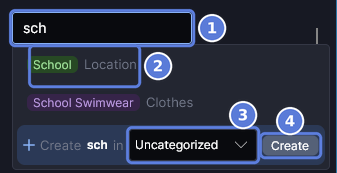
- Enter part of a name (1). The list shows matching tags, each with its category.
- Select a row (2). Enter picks a row only when it is highlighted, so use the arrow keys or click. With no row highlighted, Enter makes a new tag from your text.
- To make a new tag, choose its category in the box on the last row (3) and select Create (4). The box remembers the category you used last.
- The tag appears as a chip. To take it off this asset, select the ✕ on the chip.
Tag many assets at once
#
- Select several tiles with Ctrl+click or Shift+click, or press Ctrl+A.
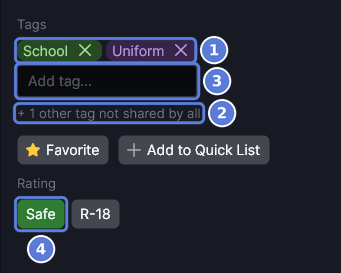
- The chips (1) are the tags every selected asset has. The line under the box (2) counts the tags only some have. Point at it to see their names.
- Enter a tag in the box (3) and select it. Every selected asset gets it.
- To take a tag off all of them, select the ✕ on its chip. To rate them all, select Safe (4) or R-18.
After Ctrl+A, KK Library asks first and gives the exact number.
Rate an asset or make it a favorite
#
- Select a tile.
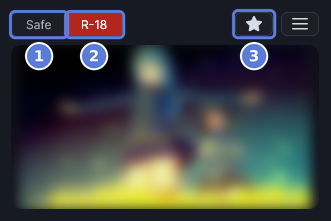
- Select Safe (1) or R-18 (2). Select the lit one again to make the asset Unrated.
- Select the star (3) to make it a favorite. Favorites in the sidebar lists them (Library).
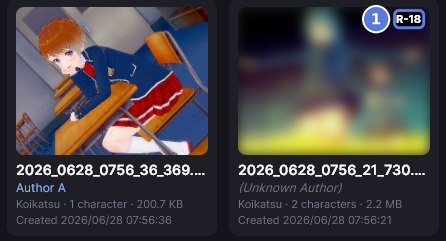
- An R-18 tile is blurred and shows R-18 (1). The inspector and the Quick List blur it too.
- To see the pictures, or to blur them again with one key, see Panic mode.
File tags into categories
#- Open Tools ▸ Tag Manager, or select Manage beside Tags in the sidebar.
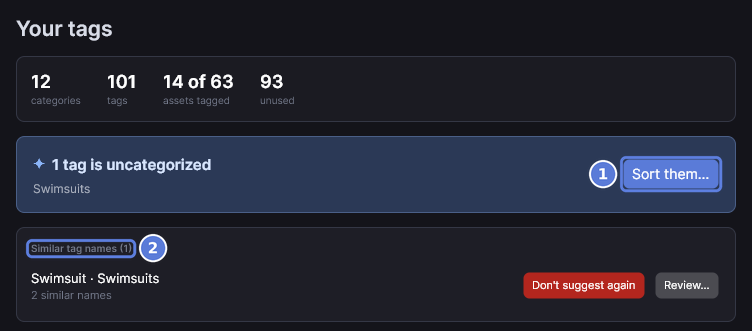
- The Overview says how many tags have no category. Select Sort them (1) to open Uncategorized with every tag in it selected. Similar tag names (2) lists tags whose names look alike (Merge tags that mean the same).
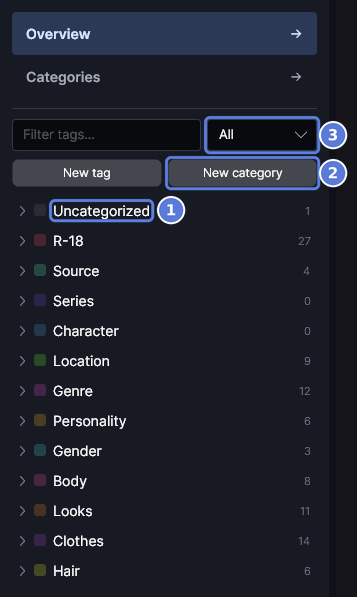
- Uncategorized (1) at the top of the list holds the tags with no category. To list only the tags of one mode, choose it in the box that reads All (3).
- Drag a tag onto a category's block, its header or any of its tags. To move several, select the box beside each one first. Dragging one of them moves them all.
- To make a category first, select New category (2) and enter its name.
Merge tags that mean the same
#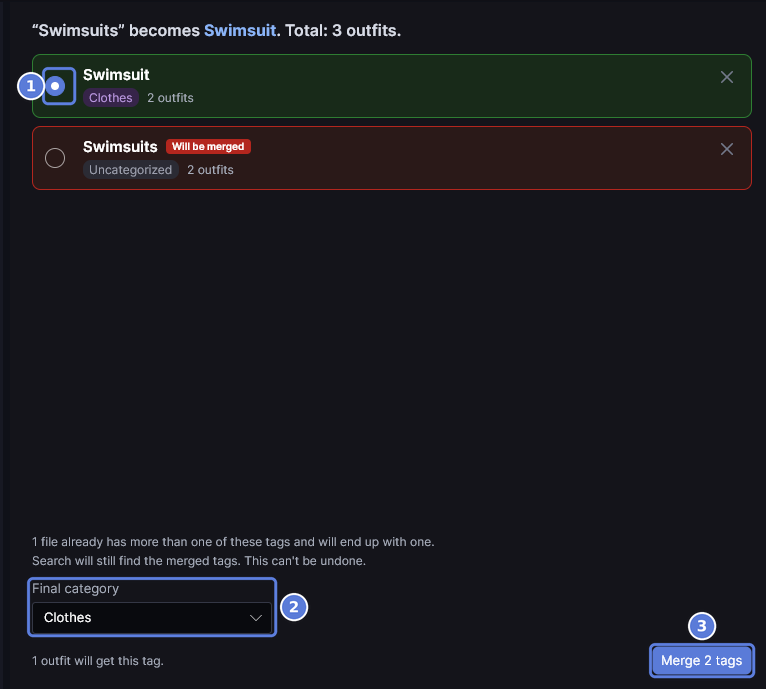
- In Tag Manager, select Review under Similar tag names in the Overview. Or select the boxes beside two or more tags in the list and select Merge. The merge screen opens.
- KK Library marks the tag on the most files to keep (1). To keep another, select the circle beside it. The kept tag's card turns green, and the others show Will be merged.
- If the tags are in different categories, choose where the kept tag goes under Final category (2).
- Select Merge 2 tags (3). Every asset that had one of them now has the kept tag. A file that had two of them ends up with one.
The other names become aliases of the kept tag, so search still finds them. A merge can't be undone. If two names are different things, select Don't suggest again on their row instead.
Change a tag's names and modes
#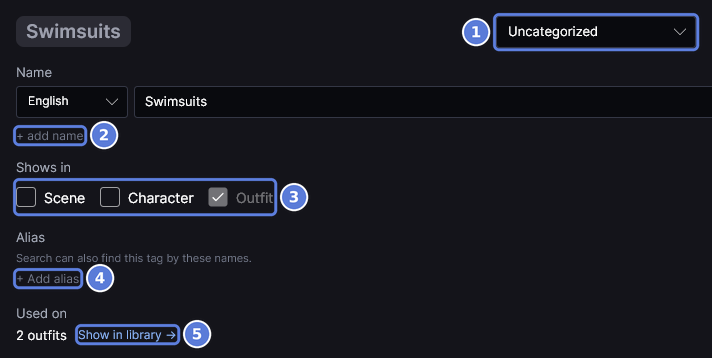
- In Tag Manager, select a tag in the list.
- To move it, choose another category in the box at the top (1).
- Each Name row is one language. A tag you made has a name only in the language the app was in. To give it a name in the other language, select + add name (2).
- Under Shows in (3), turn on the modes where the tag belongs. The last box that is on is greyed, because a tag shows in at least one mode. To move a tag to another mode, turn on the new mode first, then turn off the old one.
- To let search find it by another word, select + Add alias (4). Show in library → (5) shows the assets that have the tag.
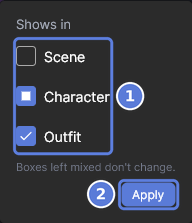
- To change many tags at once, select the box beside each one in the list, then select Show in. Turn the modes on or off (1). A box with a square means the tags differ in that mode, and a box you leave that way doesn't change. Select Apply (2).
Checked with KK Library 0.1.0-beta.9.1