
Get started
Install KK Library and add the folders that hold your Koikatsu scenes, character cards and outfits, so you can find and tag them without opening the game.
- Where to find it
- File ▸ Add library folder
What it is
#KK Library lists your Koikatsu and Koikatsu Sunshine scenes, character cards and outfits (coordinate cards) in one place. Add the folders that hold them, then search and manage them without opening the game. KK Library reads details from each file and keeps your tags, authors and ratings in its own library data.
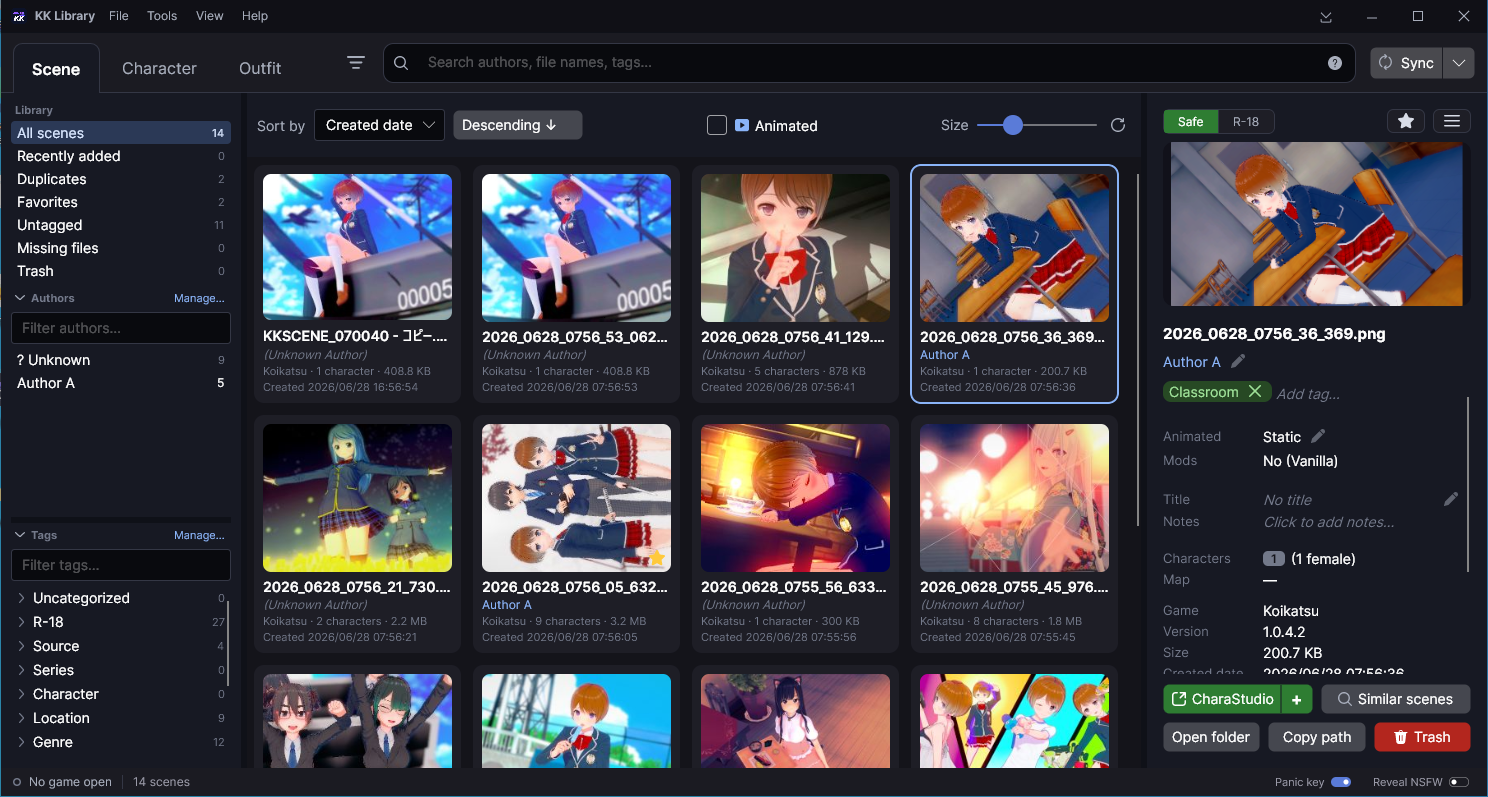
Your files stay as they are. KK Library opens them read-only. It moves, renames or changes a file only when you ask, for example in Organize files. Your library is a file of its own, outside the app's folder. So a new version of the app keeps it (where it is kept). If you choose your game folder, the only file KK Library puts there is its plugin.
What it can do
#Find any scene, card or outfit
#Choose Scene, Character or Outfit at the top, then narrow the grid from the sidebar or the search bar.
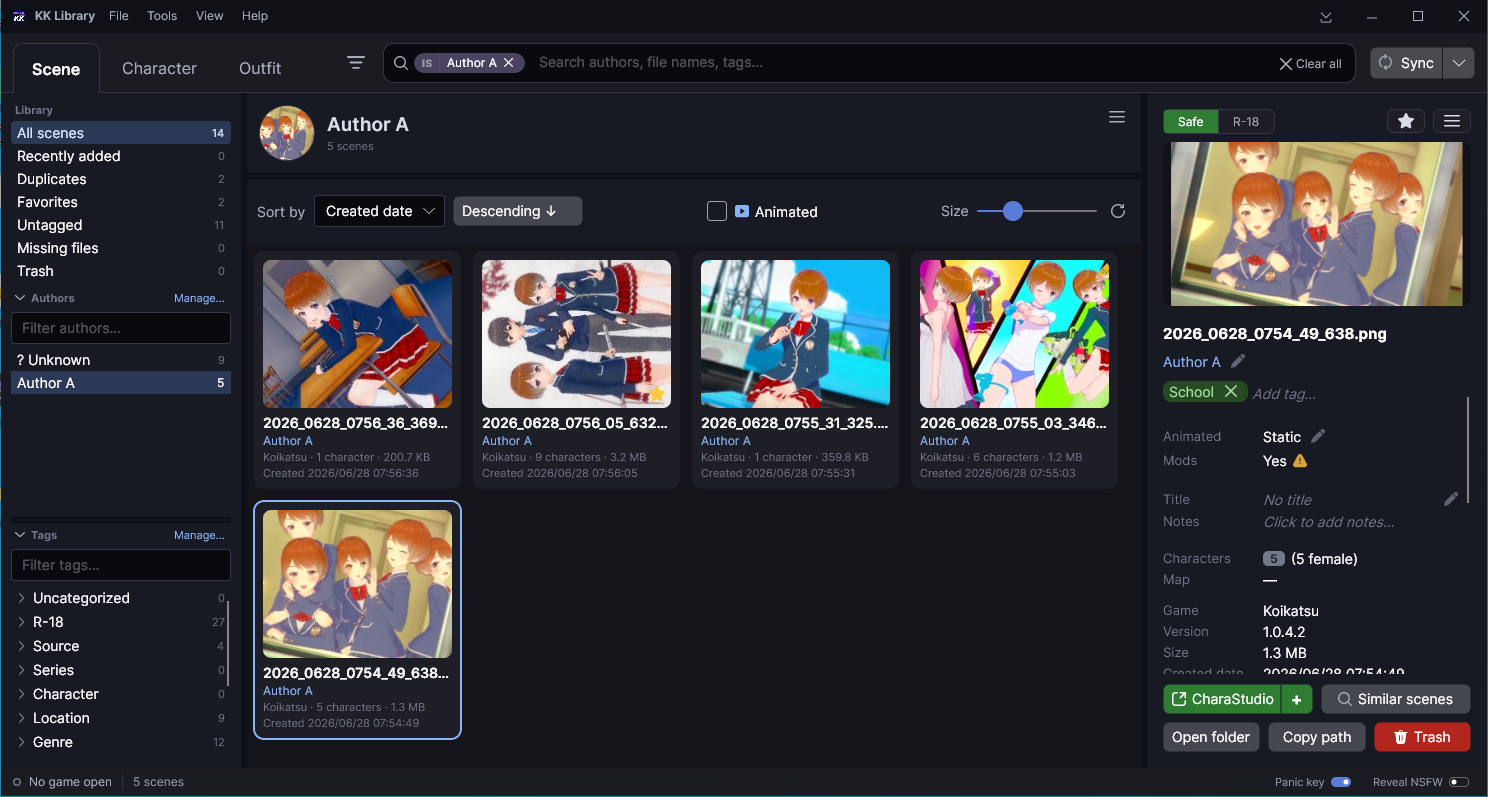
See what is inside a file
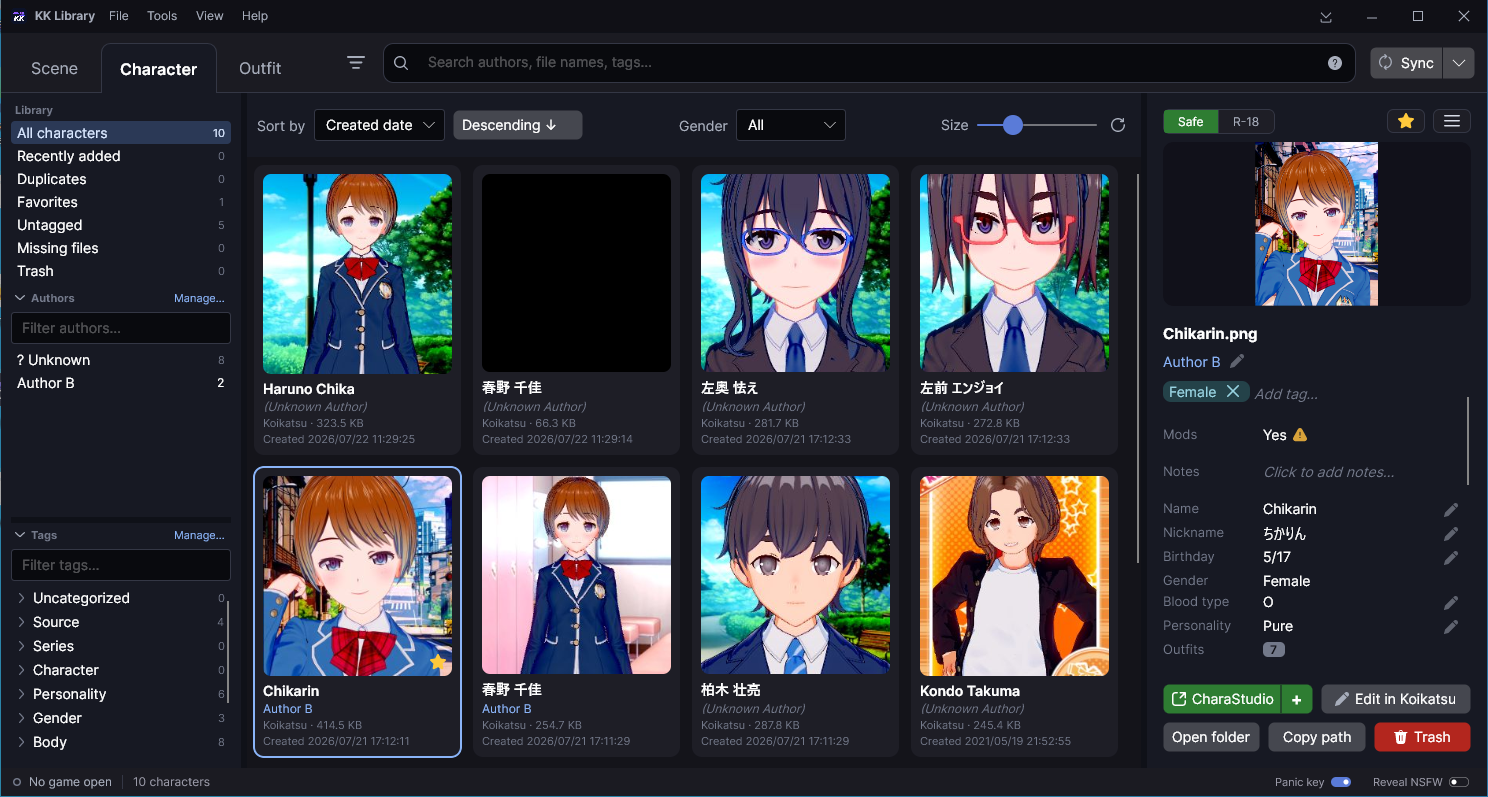
#Select a tile, and the inspector on the right shows what the file holds.
- A scene shows its characters, its map and whether it needs mods (Mods).
- A card shows the character's profile, and you can rename the character (Character cards).
- CharaStudio loads the file in the game, once you choose your game folder (Koikatsu plugin).
Tag and rate your files
#Tags, ratings, favorites and authors help you find a file again. They stay in your library, never in the file.
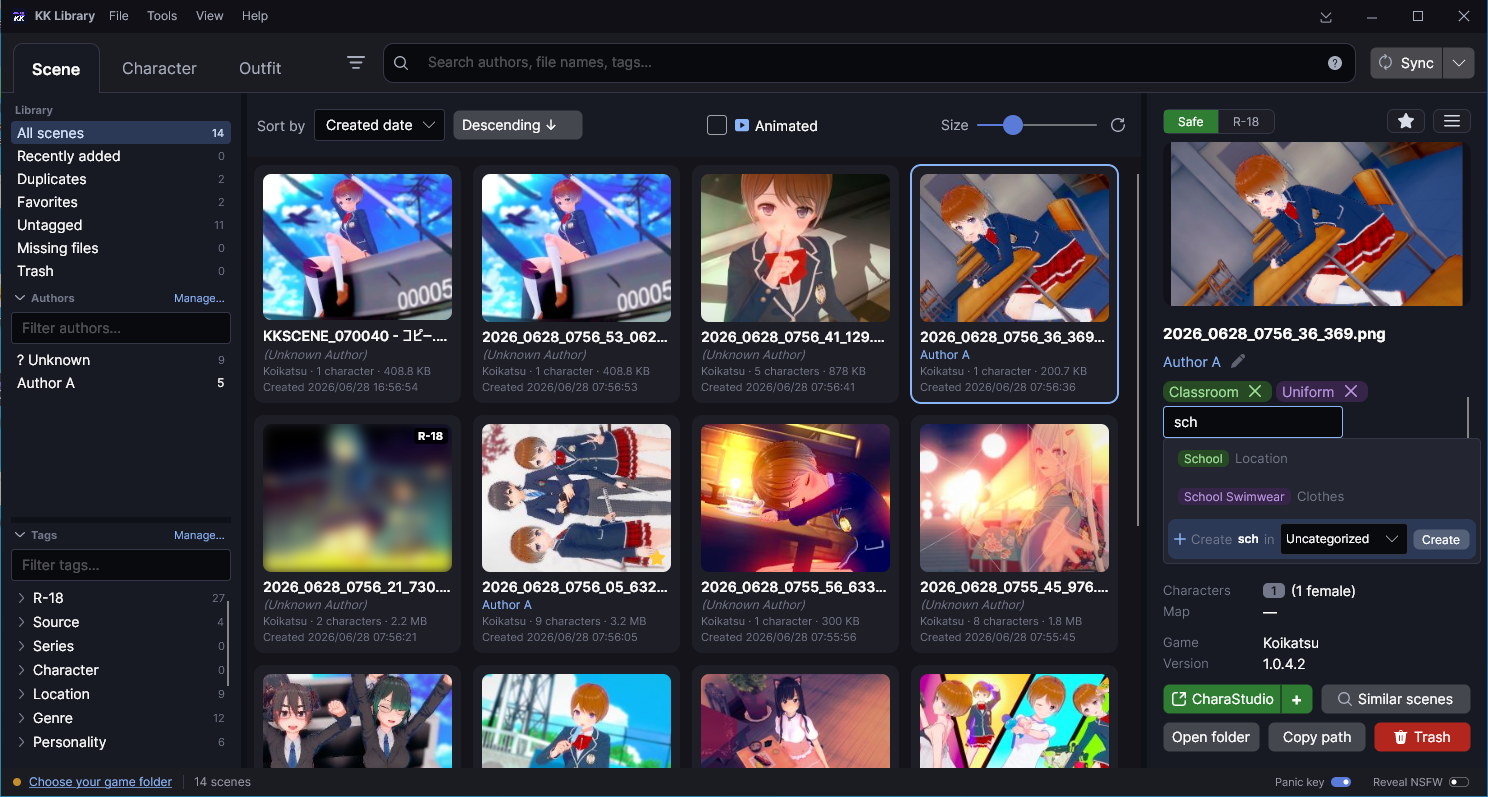
- Type in the tag box, and KK Library suggests the tags you already have (Tags, ratings and favorites).
- Rate a file Safe or R-18. An R-18 picture stays blurred until you turn on Reveal NSFW (Panic mode).
- Set who made a file. KK Library suggests an author from your folder names, and you confirm it (Authors).
Clean up copies and folders
#KK Library finds exact copies while it syncs and lists them in Tools ▸ Review duplicates.
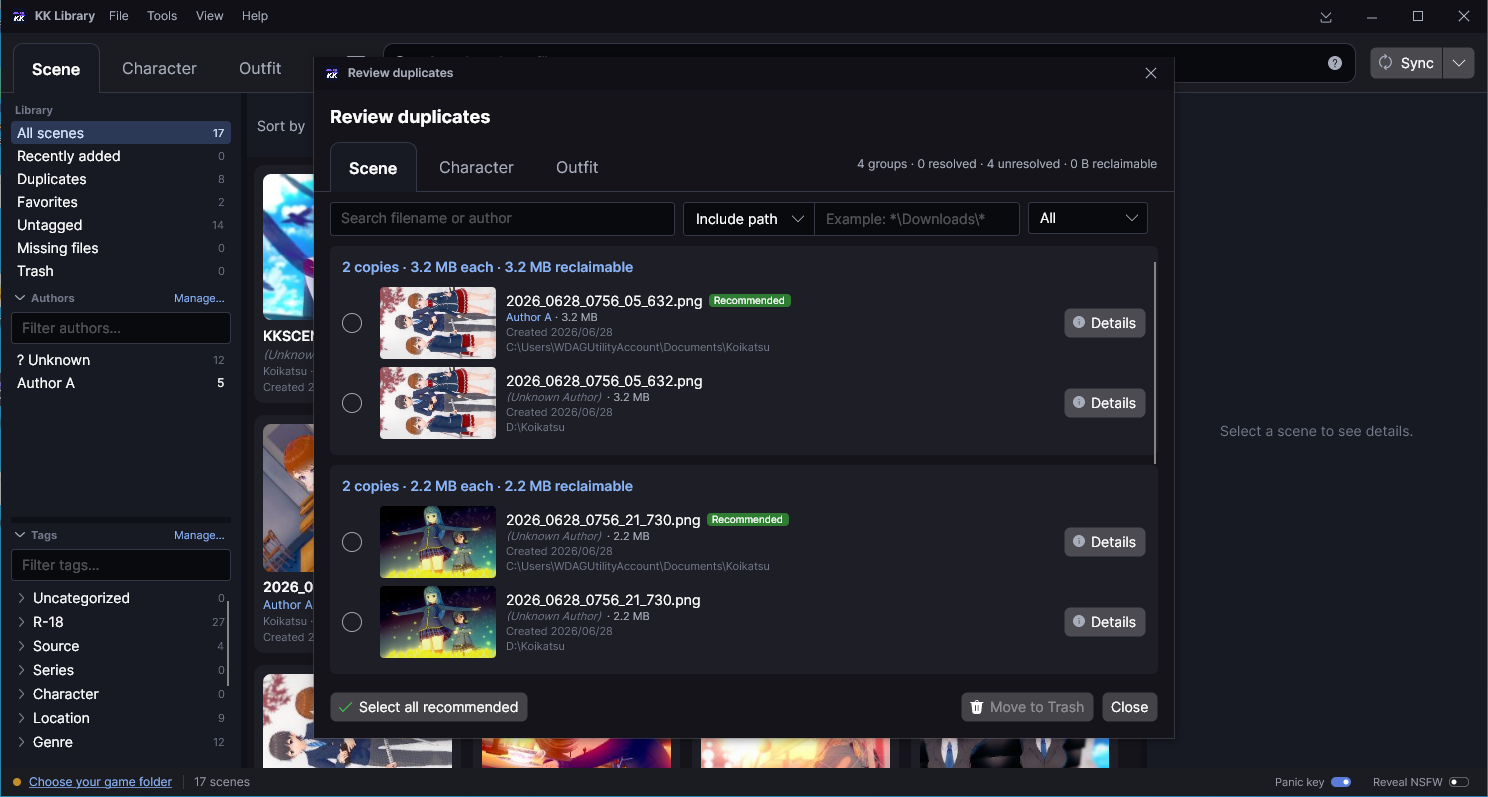
- Find similar lists look-alikes, like a scene released twice (Similar and duplicates).
- Organize files moves or copies files into folders by author, tag or date.
- A file you move to the Trash can be restored (Trash and removing files).
How a sync reads your folders
#A sync reads each library folder and every folder inside it, on any drive. It finds scenes, character cards and outfits from both games.
- Other PNG files, like screenshots, are left out. So are folders named
_autosave, where CharaStudio keeps its automatic saves. To skip more, see Skip folders and files when syncing. - A sync has two steps. Finding assets (1/2) reads only the start of each file, enough for a tile, so the grid fills in seconds. Analyzing assets (2/2) reads each file to the end. It finds the characters, the map, the mods and the fingerprint that spots exact copies. It takes most of the time.
- Until a file is analyzed, its tile shows a clock and the inspector shows Analyzing…. You can keep browsing. If you close KK Library, the sync goes on the next time you open it.
- Later syncs read only new and changed files. KK Library checks their size and Updated date, called Date modified in File Explorer (how KK Library dates a file). Select Sync after you add files. KK Library doesn't watch your folders.
- A file you rename or move in File Explorer keeps its tags. KK Library finds it by size and date, then checks its full contents. A copy becomes a new asset.
- Sync mods needs your game folder. KK Library also checks your mods by itself (how it knows which mods you have).
- After an app update, Updating library data may run once in the same progress box. You can keep working.
How to do it
#Download and open KK Library
#- Download the ZIP from the home page. If the download doesn't start, try another browser or another network.
- Right-click the ZIP, select Extract All and choose a folder. There is nothing to install.
- Open
KKLibrary.exein that folder.
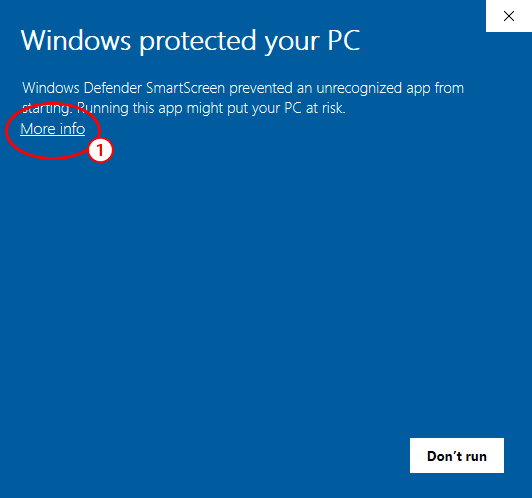
- If Windows says Windows protected your PC, select More info (1).
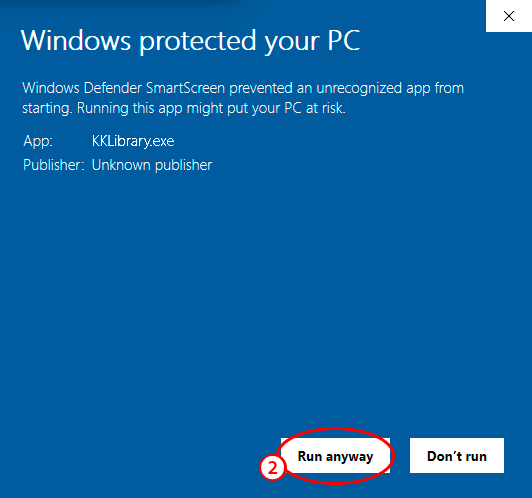
- Select Run anyway (2).
KK Library is not code-signed, so Windows may show this warning the first time you open it. Even a signed app can get the warning until enough people have downloaded it. To check your copy, compare its SHA-256 with the SHA-256 link on the home page, beside the version number.
Set up KK Library the first time
#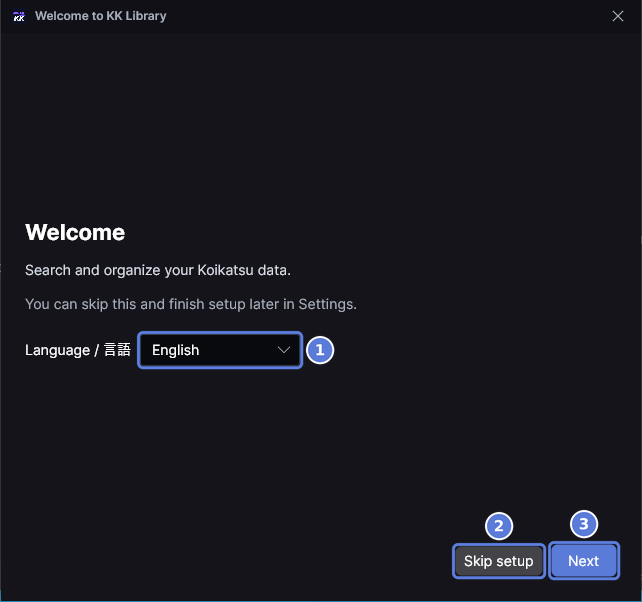
- The first time KK Library opens, the Welcome to KK Library window opens over it. To change the language, choose one in the Language / 言語 box (1). KK Library restarts in that language and opens this window again.
- Select Next (3). To set up later in Settings, select Skip setup (2) instead.
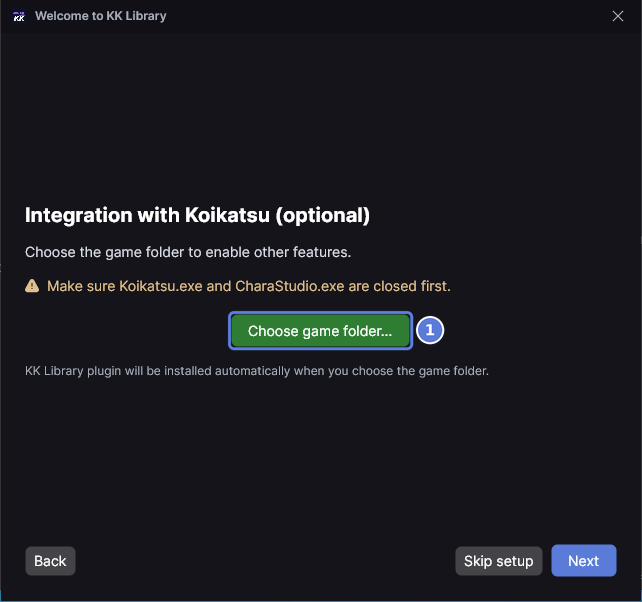
- To use KK Library with the game, close Koikatsu and CharaStudio first.
- Select Choose game folder (1) and choose the game's folder, the one that holds
CharaStudio.exe. As the line under the button says, KK Library installs its plugin there. It also adds the game's folders to your library and starts syncing them behind the window. - Select Next. The last step shows What's New. Select Finish.
This window opens only once. Finish, Skip setup and the window's ✕ all close it for good.
Add a library folder
#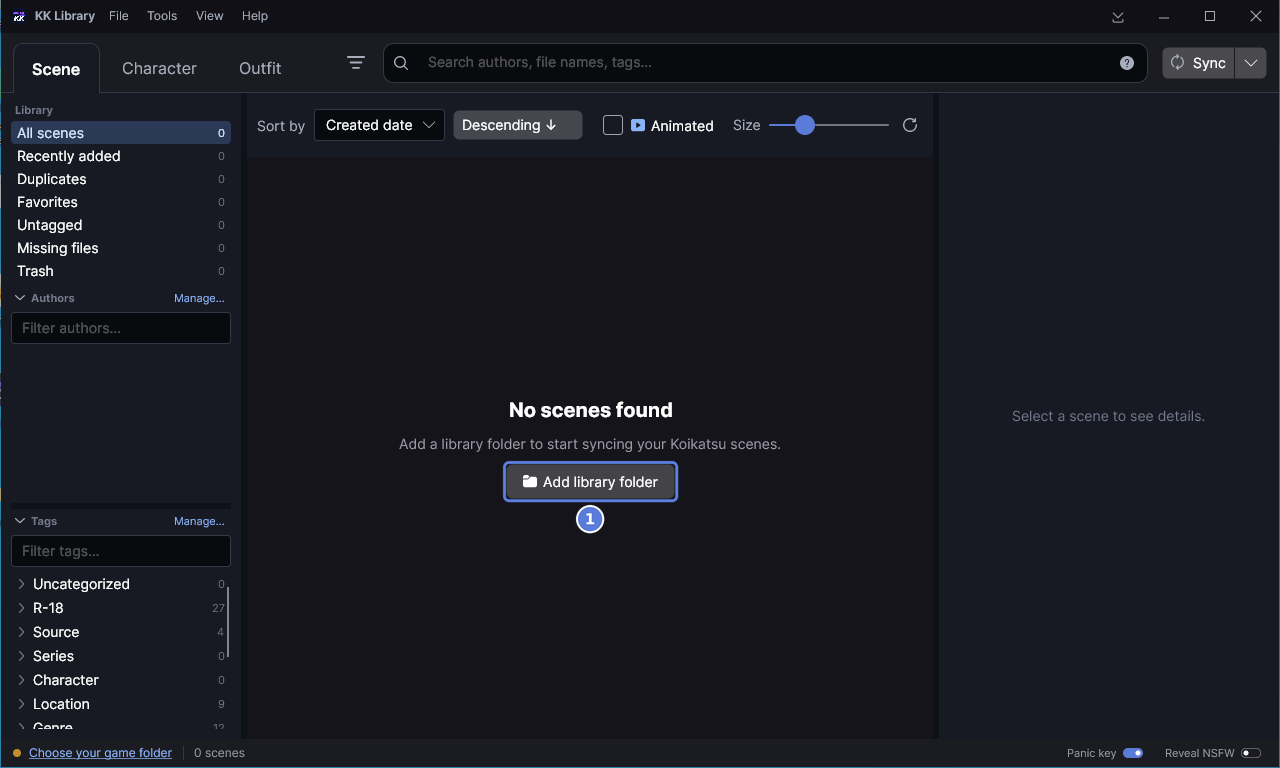
- Select Add library folder (1) in the middle of the window. It is also in the File menu.
- Choose a folder that holds scenes, cards or outfits, like a download folder.
- The sync starts by itself, and tiles appear in the grid as files are found.
- When the sync is done, the status bar at the bottom says how it went.
The status bar usually says how many files the sync read. After a first sync that found authors to suggest, it points you to Author Manager instead. If files left the disk or a library folder couldn't be reached, it says that first.
A folder that is already inside a library folder can't be added. KK Library says which library folder holds it. A folder that holds library folders can be added. KK Library first asks Add this folder to your library? and lists the library folders it replaces. Select Add folder to make it one library folder. Every asset in the old ones stays, with its tags and authors.
Sync after you add files
#
- Save or download new files into a library folder.
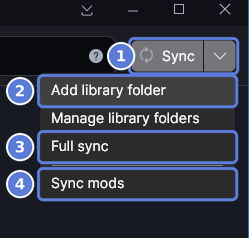
- Select Sync (1). KK Library reads the new and changed files. If nothing changed, the status bar says so: Up to date. Nothing new to analyze.
- To add another folder, select the arrow beside Sync and choose Add library folder (2).
- To read every file again, choose Full sync (3) from the same menu.
- To read your installed mods again, choose Sync mods (4).
- While a sync runs, the progress box takes the place of Sync. Its first line names the step and the percent done. Its second line counts the files and estimates the time left.
- To pause, select Pause sync, the pause button beside the box. The second line then reads Sync paused. Select Resume sync to go on. To stop, select Cancel sync, the ✕.
Tour the main window
#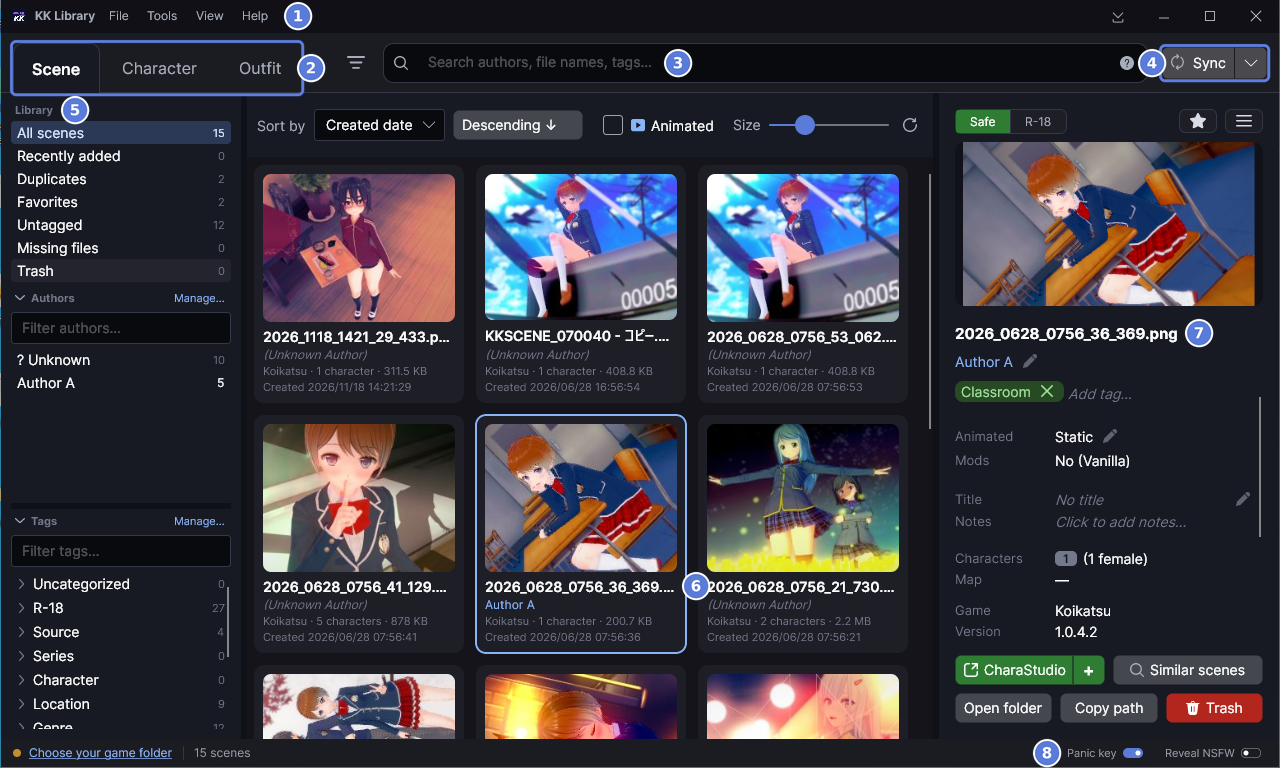
- The menus (1). File holds the library folders, Sync, Export library data, Import library data and Settings. Tools holds Author Manager, Tag Manager, Review duplicates, Find similar and Organize files. View opens the Quick List. Help holds What's New and Check for updates.
- Scene, Character and Outfit (2) switch between the three modes, one for each kind of asset. Each mode keeps its own search and selection.
- The search bar (3) finds assets by author, file name, tag and more. See Search.
- Sync (4) brings the library up to date with your folders.
- The sidebar (5) narrows the grid. Library lists All scenes, Recently added, Duplicates, Favorites, Untagged, Missing files and Trash, each with its count (Show one part of your library). Duplicates counts every file that has an exact copy, so one pair counts as 2. Authors and Tags follow.
- The grid (6) shows a tile for each asset. Select one to see it in the inspector.
- The inspector (7) shows the selected asset with its details, rating, author and tags (See an asset's details). The CharaStudio button sends a scene to the game.
- The status bar (8) starts with the game state. Before you choose a game folder, it reads Choose your game folder. Next comes a status line with the grid's count or the last sync's result. The Panic key and Reveal NSFW switches sit at the right.
- Panic key is on from the start. Press Esc to hide every KK Library window at once. See Hide KK Library at once.
- The KK Library icon stays in the Windows notification area while KK Library runs. Select it and choose Show KK Library to bring hidden windows back (the icon's menu).
Checked with KK Library 0.1.0-beta.9.1