
Library
KK Library shows your Koikatsu scenes, character cards and outfits as a grid you can narrow, sort and select from, with each asset's details in the inspector.
- Where to find it
- Scene, Character and Outfit at the top of the main window
What it is
#KK Library shows the Koikatsu scenes, character cards and outfits (coordinate cards) in your library as a grid of tiles. It shows one mode at a time. Each mode remembers its own sidebar choice, search, selection, scroll position and sort order.
The grid shows files in your library. A new file appears after a sync. The refresh button reads your library again, but doesn't scan folders. Use the search bar to find an asset by name, tag or author. Get started shows the main window's parts.
What it can do
#Read a tile
#Each tile shows the asset's name, author, game, size and one date. Marks on the tile tell you more.
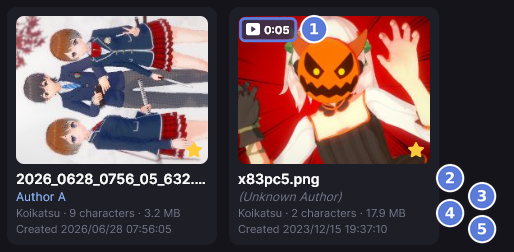
| Part | What it tells you |
|---|---|
| Badge (1) | The scene is animated. When KK Library knows how long it plays, the badge shows the length, here 0:05 (Scenes) |
| Name (2) | A scene shows the Title you gave it in the inspector, or its file name until you give one. A card shows the character's name. An outfit shows the name saved inside it, so 制服.png can show 学生服 |
| Author (3) | A plain name is a confirmed author. A name in italics is only a suggestion. (Unknown Author) means there is nothing to suggest |
| Game and size (4) | A scene also shows how many characters it holds |
| Date (5) | The date the grid is sorted by: Updated, Added or Moved to Trash. Every other order shows Created |
| Note icon | The asset has a note. Point at the icon to read it |
| Clock | KK Library is still analyzing the file. Until it finishes, the inspector shows Analyzing and you can't change the rating, favorite or author |
| File missing or Moved to Trash | The file is gone, or you moved the asset to the Trash |
Pictures load as tiles come into view, so a fast scroll can show empty tiles for a moment.
Narrow the grid from the sidebar
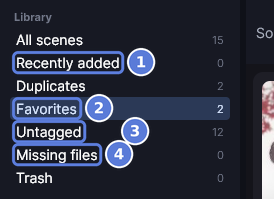
#The sidebar's Library list shows one part of the mode. Tags and Authors below it narrow the grid by tag or author.
| Row | What it shows |
|---|---|
| All scenes | Everything in the mode except the Trash. It reads All characters or All outfits in the other modes |
| Recently added | What KK Library found in the last 14 days, by Added date. A scene saved years ago but downloaded this week is recent |
| Duplicates | Every file that has an exact copy. Its number counts each of those files (Similar and duplicates) |
| Favorites | The assets you starred (Tags, ratings and favorites) |
| Untagged | The assets with no tag at all |
| Missing files | The assets whose file the last sync couldn't find (Find missing files) |
| Trash | The assets you moved to the Trash (Trash and removing files) |
- The numbers count the whole mode and ignore the search, so the grid can show fewer.
- Tags lists your tags by category, and Authors lists your authors. Select one to search by it (Search by tag or author). Manage opens the Tag Manager or the Author Manager.
- When a change takes an asset out of what the grid shows, its tile leaves. Take the star off a scene in Favorites and it goes. The Trash keeps its tiles in view.
Choose an order
#Sort by a date, a name, File name or File size. Each mode has its own name orders.
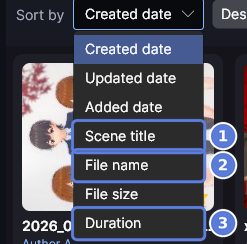
| Order | Mode | How it sorts |
|---|---|---|
| Created date, Updated date, Added date | All | By the dates in How KK Library dates a file |
| Scene title (1) | Scene | By what scene tiles show: your title, or the file name |
| First name, Last name, Nickname | Character | By the card's names. The nickname isn't on the tile |
| Outfit name | Outfit | By the name saved inside the outfit |
| File name (2) | All | By the file name only, not the folder, so files with the same name sit together |
| File size | All | By the size of the file |
| Duration (3) | Scene | By how long each scene plays. Static scenes count as 0:00, and so do scenes you marked Animated or Static by hand (Scenes) |
| Date moved to Trash | Trash only | By when you moved each asset to the Trash |
Each row of the Library list remembers its own sort in each mode. Recently added starts on Added date, the Trash on Date moved to Trash and the others on Created date, newest first.
See and change one asset or many
#Select a tile to see its details in the inspector on the right, or select several to change them together.
- At the bottom of the inspector, Open folder opens the file's folder and Copy path copies its path. Mod dependencies lists the mods the asset needs (Mods).
- More actions at the top holds the other commands for the asset.
- Right-click a tile to send it to the game or add it to the Quick List. When the tile has a confirmed author, Edit author in Author Manager opens that author (Authors).
- Press and drag anywhere in the grid to scroll it, and flick to keep it moving.
How KK Library dates a file
#KK Library keeps three dates for each file, and you can sort by any of them.
| Date | What it is |
|---|---|
| Created date | The oldest of three: the date in a file name the game wrote, like 2026_0628_0756_05_632.png, the day the file was created and the day it was last written. A copy gets a new created day, so the oldest date is closest to when the file was made. A renamed file keeps the date from its old name |
| Updated date | The day the file was last written. File Explorer shows it as Date modified, so you can check it against the file |
| Added date | The day KK Library first found the file. A later sync, even a full sync, keeps it |
How to do it
#Show one part of your library
#
- Choose Scene, Character or Outfit at the top of the main window.
- In the sidebar's Library list, select Recently added (1), Favorites (2), Untagged (3) or Missing files (4). The grid shows only those assets.

- The search bar shows your choice as a chip (1). Any search you had stays.
- To see everything again, select the ✕ on the chip, or All scenes at the top of the Library list.
Sort the grid
#
- Select the box beside Sort by (1) and choose an order.
- To reverse the order, select the button beside it (2). It reads Descending ↓ or Ascending ↑.
- To change the tile size, move the Size slider (3).
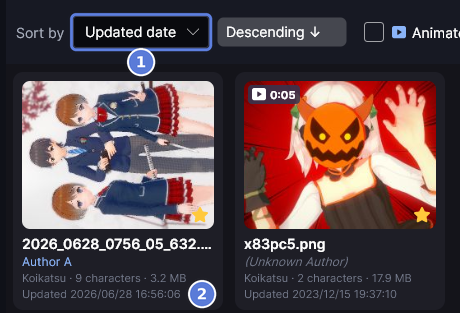
- Check the last line of a tile (2). It names the date the grid is sorted by, here Updated date (1).
See an asset's details
#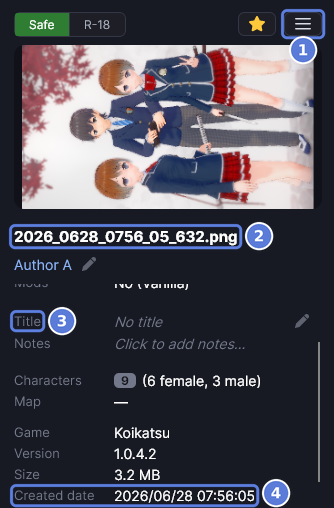
- Select a tile. The inspector on the right shows it.
- To see the dates, scroll the middle of the inspector down to Created date (4). Updated date and Added date are below it.
- To rename the file, select its name (2), enter the new name and press Enter. The file on disk is renamed.
- To give a scene a title, select No title beside Title (3), enter the title and press Enter. The title is kept in your library, not in the file.
More actions (1) holds the other commands for the asset, like Open in new window.
Keep an asset open in its own window
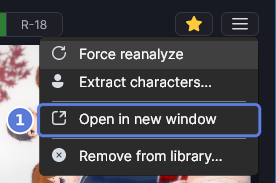
#
- Select a tile.
- Select More actions at the top of the inspector, then Open in new window (1).
- A window named Inspector: and the file name opens. It keeps showing that asset while you select others in the grid, and you can make changes in it.
Select several assets
#- Select a tile. Ctrl+click adds or takes away one more, and Shift+click selects every tile between.
- To select everything the grid shows, including the tiles further down, press Ctrl+A.
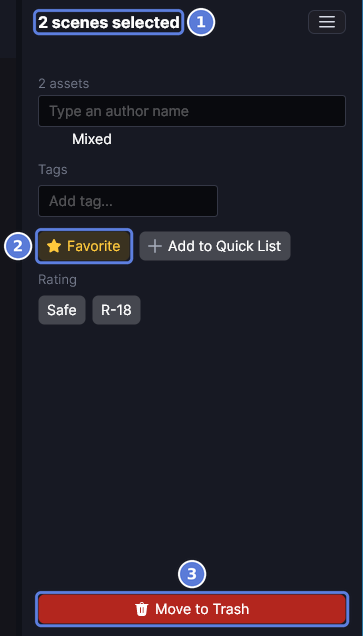
- The inspector says how many are selected (1). A change there applies to all of them.
- To star them all, select Favorite (2). It turns gold when all of them are favorites, and selecting it then takes the star off all of them.
- To move them to the Trash, select Move to Trash (3), or press Delete while the grid has focus. The files stay on disk.
- To clear the selection, click an empty part of the grid.
Use keyboard and mouse shortcuts
#Keyboard shortcuts work in the part of the window you selected last. Select a tile before using the grid shortcuts. The table also lists mouse actions for selecting tiles and sidebar rows.
| Key | What it does | Where |
|---|---|---|
| Arrow keys, Home, End | Select the next, first or last tile. Hold Shift to select every tile between | Grid |
| Ctrl+click, Shift+click | Add or take away one tile, or select every tile between | Grid |
| Ctrl+A | Select every asset the grid shows, including the tiles further down | Grid |
| Delete | Move the selected assets to the Trash. The files stay on disk (Trash and removing files) | Grid |
| Ctrl+click, Shift+click | Add a tag or author to the search or take it away, or select every row between | Tags and Authors in the sidebar |
| Backspace | Remove the last chip when the box has no text | Search bar |
| Enter | Save a new file name, title or note. In a note, Shift+Enter starts a new line | A box in the inspector |
| Esc | Hide every KK Library window (Hide KK Library at once). With Panic key off, Esc closes a list, cancels an edit or clears the search text (Use Esc for lists and boxes) | Any window |
| Enter | Load the selected asset through CharaStudio | Quick List |
| Delete | Take the selected asset off the list. Its file stays | Quick List |
Checked with KK Library 0.1.0-beta.9.1