
Search
KK Library's search bar finds the Koikatsu scenes, character cards and outfits you want by name, folder, tag, author or filter and leaves out the rest.
- Where to find it
- The search bar above the grid
What it is
#The search bar finds scenes, character cards and outfits by name, folder, author or note. It searches the mode you're in and the files already in your library. Select Sync to find files you added since the last sync (Get started).

The bar shows your text and chips (1, 2). Each chip is a search condition, such as a tag, author or filter. Remove a chip to broaden the results.
What it can do
#Common searches
#The searches players ask for most take one or two steps.
- To hide R-18, open Advanced filters and select Safe and Unrated under Rating.
- To see one author's work, select them under Authors in the sidebar. Or enter their name and select them in the list.
- To see only animated scenes, select Animated in the sort bar above the grid.
- To see everything in one folder, enter
filepath:and the folder's name, likefilepath:Downloads. - To find files that need mods, select Mods in Advanced filters. Which mods are missing shows on each asset's Mods line.
Every key and filter
#Type a key to search one field. Both spellings work in either app language, with a half-width or full-width colon. A key counts only at the start of the text.
| You type | Japanese form | Mode | What it finds | Example |
|---|---|---|---|---|
| Any text, no key | Same | All | The text anywhere in the file's path (every folder and the file name), a card's name and nickname, an outfit's name, the confirmed author's names and the Title and Notes you wrote. Not the names of a scene's characters | school uniform |
- at the start | - | All | Leaves out the word, or a tag or author you select in the list. A - anywhere else is a letter | -swim |
filename: | ファイル名: | All | The file name only, with its extension | filename:2B |
filepath: | パス: or ファイルパス: | All | The whole path: every folder and the file name. / and \ are the same | filepath:Downloads |
text: | 文字: | All | The same places as plain text, kept as a chip. To find two words in different places, keep one as a chip and type the other | text:beach |
title: | タイトル: | Scene | The Title you gave the scene in the inspector | title:beach |
firstname: | 名: | Character | The card's first name | firstname:Sakura |
lastname: | 姓: | Character | The card's last name | lastname:ko* |
nickname: | ニックネーム: | Character | The card's nickname | nickname:Saku |
outfitname: | 衣装名: | Outfit | The outfit name saved in the file | outfitname:uniform |
* after a key | Half-width only | All | Any number of characters. With a wildcard, the whole field has to match | filename:2B* finds names that start with 2B |
? after a key | Half-width only | All | Exactly one character | filename:img_??.png |
" around the whole text | Half-width only | All | The text exactly as typed, with no key or minus | "-beach" finds -beach |
There is no author: or tag: key. Select authors and tags in the list under the bar instead. As text, a tag's name would match every file in a folder of that name.
| Chip | Where it comes from | What it finds | NOT |
|---|---|---|---|
| Tag | The list under the bar, or Tags in the sidebar | Assets with the tag. Several tag chips find assets with all of them | Hides assets with the tag |
| Author | The list under the bar, or Authors in the sidebar | The author's files, plus those KK Library suggests for them, in italics on the tile. Several author chips find files by any of them | Hides that author's files. Files with no author stay |
| ? Unknown | Authors in the sidebar | Files with no author and no suggestion | None |
| A Library list row | The sidebar's Library list, like Favorites | That part of your library (Library) | None |
text: or a key | The row you select after typing a key | The text in that field | Hides files where it matches. Files where the field is empty stay |
| Similar to | Similar scenes in the inspector | Scenes like the one you selected. It clears the rest of the search | None |
| Filter | Mode | What it finds | NOT |
|---|---|---|---|
| Cast composition: Solo (female), Solo (male), All-female, All-male, Pair (female + male), Mixed group | Scene | Scenes by who is in them. All-female and All-male mean two or more. Mixed group means three or more, with both | None |
| Gender: Any, Female, Male | Outfit | Who the outfit is for, as you set it (Outfits) | None |
| Game: Koikatsu, Koikatsu Sunshine | All | The game the file was made in | None |
| Rating: Safe, R-18, Unrated | All | The asset's rating (Tags). Unrated means no rating yet | None |
| File size (MB): Min ~ Max | All | Files within that size. Fill one box or both | None |
| Duration: 0:00 ~ 0:00 | Scene | How long an animated scene plays. Enter 1:30 or 90. Static scenes never match. An animated scene with no length on its tile counts as 0:00 | None |
| Animated | Scene | Scenes that move (Scenes) | Static scenes |
| Mods | All | Assets that need at least one mod | Assets that need none, including No (Plugins only) |
| Missing file | All | Assets whose file is gone (Trash) | Hides them |
| Created: two dates | All | Assets made between two dates, both days included, by the Created date on the tile | None |
| Sort bar Animated | Scene | The same chip as Animated above | Same as above |
| Sort bar Gender: All, Female, Male | Character | The card's sex, read from the file | None |
| Sort bar Gender: All, Female, Male | Outfit | The same chips as Gender above, without Any | None |
How chips work together
#An asset must match every chip, with two exceptions.
- Author chips find files by any of them. Selecting an author in the list replaces the one there. To add a second, hold Ctrl and select it under Authors in the sidebar.
- Several boxes in Cast composition, Game, Rating or Gender find assets that match any of them. So these chips have no NOT: select the other boxes instead.
How text matches
#What you type is one piece of text, spaces included. school uniform finds those two words side by side, not apart.
- Upper and lower case match for Latin letters. Full-width and half-width letters match only in author names.
- The list under the bar ignores case and width, and for tags spaces too.
swim suitoffers Swimsuit. It finds an author by any of their names, aliases included.
How to do it
#Search by typing
#
- Choose Scene, Character or Outfit at the top of the main window.
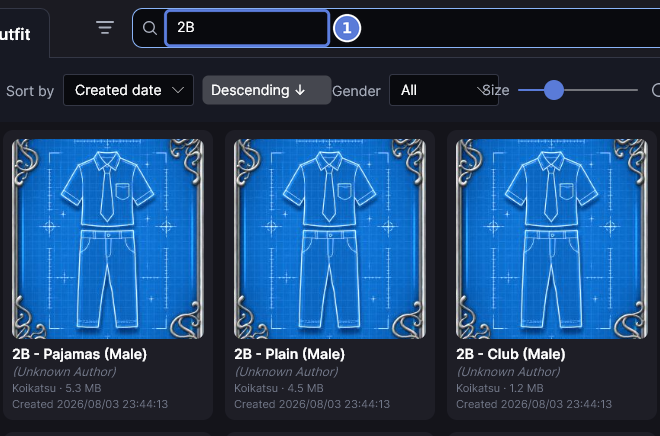
- Select the search bar and enter part of a name, a folder, an author or a note (1). The grid narrows as you type. You don't need Enter.
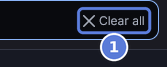
- To start over, select Clear all (1). It removes the text and every chip, and goes back to the top row of the Library list.
Search by tag or author
#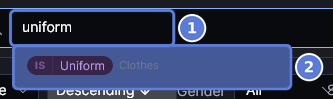
- Enter part of a tag's or an author's name (1). The list shows matching tags with their category, then matching authors.
- Select a row (2). Enter picks the highlighted row, so press Enter only when you want that row.
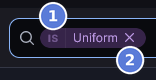
- The tag becomes a chip (1) and your text clears. The grid shows only the assets with that tag.
- To remove the chip, select its ✕ (2), or press Backspace in the empty box.
Leave out a tag, author or word
#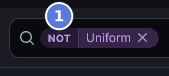
- Select IS on the chip. It reads NOT (1), and the grid hides the assets with that tag.
- Select NOT to include it again. You can also right-click the chip and choose Include, Exclude or Remove from search.
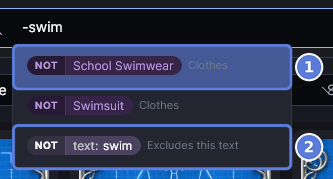
- To leave something out by typing, start with
-, like-swim. The list offers matching tags and authors as NOT chips (1), and last the word itself (2). - Select a row. The grid waits until you do.
Search one field with a key
#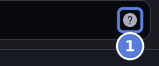
- With the search bar empty, select the ? button (1). It shows what you can type in this mode. The list also opens by itself the first time you select the empty search bar in each mode.
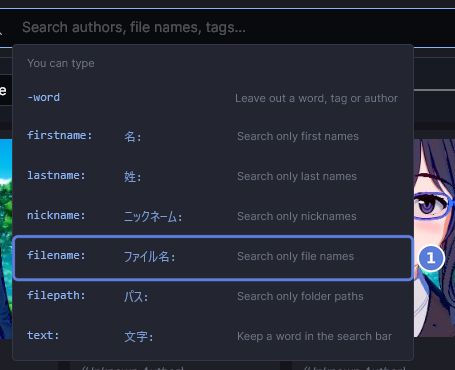
- Select a key, like
filename:(1). It goes into the search bar. - Enter the value after the key, like
ill*.
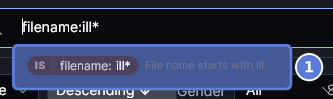
- The first row shows the chip it makes and says what it finds (1). Select it. Until you do, the grid doesn't use the key.
Use Advanced filters
#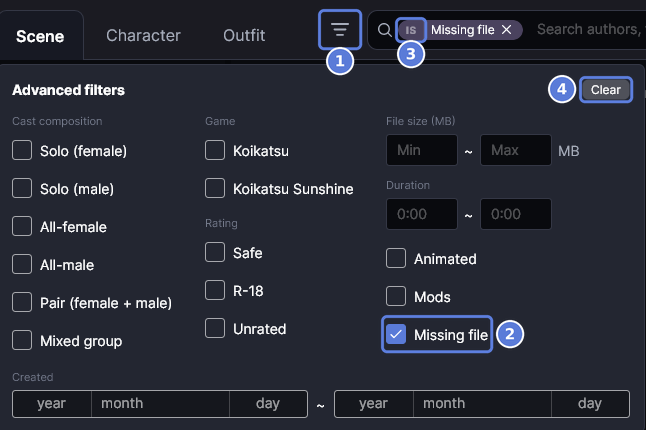
- Select the Advanced filters button at the left of the search bar (1).
- Select what you want, like Missing file (2). Each box you select becomes a chip in the search bar. This one reads IS Missing file (3), and the grid shows only the assets whose file is gone.
- To get the opposite, select IS on the chip (3). It reads NOT, and the grid hides the missing files. The box stays selected.
- Select anywhere outside the panel to close it. To clear every filter in it, select Clear (4).
- To remove one filter, select the ✕ on its chip.
Checked with KK Library 0.1.0-beta.9.1