
Outfits
KK Library sets who each Koikatsu outfit is for and changes the name saved inside the outfit file.
- Where to find it
- The inspector in Outfit mode
What it is
#An outfit (coordinate card) is a PNG file that contains clothes and accessories. Koikatsu saves outfits in UserData\coordinate. KK Library reads them during sync, then shows their contents and the mods they need.
An outfit file doesn't say who it is for. Both games can load it on a female or male character, but some clothes may appear as default items on the other gender. Gender is KK Library's own setting and stays in your library.
What it can do
#Who an outfit is for
#Gender reads Any, Female or Male. Set it for one outfit or many at once.
- Narrow outfits by gender with Advanced filters or the sort bar (Search).
- Sort outfits into folders by gender with Organize files.
- Edit in Koikatsu opens the matching character maker, and asks when it reads Any (Koikatsu plugin).
Change the outfit name
#Outfit name is the name saved inside the file. The character maker's outfit list shows it, not the file name.
- A file without one reads No name, and its tile shows the file name.
- Restore original puts back the file from before your first change, as for a character card.
More you can do with outfits
#Each of these has its own page.
- Load an outfit in the character maker or CharaStudio (Koikatsu plugin).
- Save a card's outfits as outfit files, set to the card's gender (Extract outfits from cards).
- Find outfits with the same clothes (What each tool compares).
- Search outfits by name or tag (Every key and filter).
How KK Library sets Gender at first
#When KK Library first finds an outfit, it checks these in order and stops at the first that says something:
- a mark like
(female),(Boys)or(男)in the outfit name - the file name:
KKCoordeF_orKKCoordeM_, as the game names its outfits, or a mark as above - a folder named
FemaleorMale
With none of these, the outfit starts at Any. After that, KK Library never changes Gender, so your choice stays.
How to do it
#Set who an outfit is for
#- Choose Outfit at the top of the main window and select an outfit.
- Select the pencil beside Gender, or its value. A list opens.
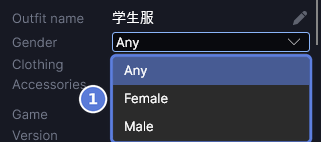
- Choose Any, Female or Male in the list (1). The outfit file doesn't change.
- To set several outfits at once, select them all in the grid. Then choose a value in the inspector's Gender box. It applies to every one.
Rename an outfit
#- Select an outfit in Outfit mode.
- Select the pencil beside Outfit name, or the name itself.
- Enter the new name in the box.
- Press Enter. KK Library writes the outfit file, and the status bar says Outfit updated.
To stop without a change, press Esc while Panic key is off (Panic mode).
Restore the original outfit
#- Select the outfit you renamed.
- Select More actions at the top of the inspector, then Restore original. It shows only while the file differs from its edit backup.
- KK Library asks Restore the original outfit file? Select Restore original to put the file back, or Cancel to keep it as it is.
The status bar then says Original restored.
Checked with KK Library 0.1.0-beta.9.1