
Quick List
KK Library's Quick List gathers the Koikatsu scenes, character cards and outfits you want for a session in one small window, so you can drag them into the game.
- Where to find it
- View ▸ Quick List, the + beside CharaStudio in the inspector, and the KK Library icon in the notification area
What it is
#The Quick List holds assets you pick while browsing. Keep its window beside the game to drag files into it.
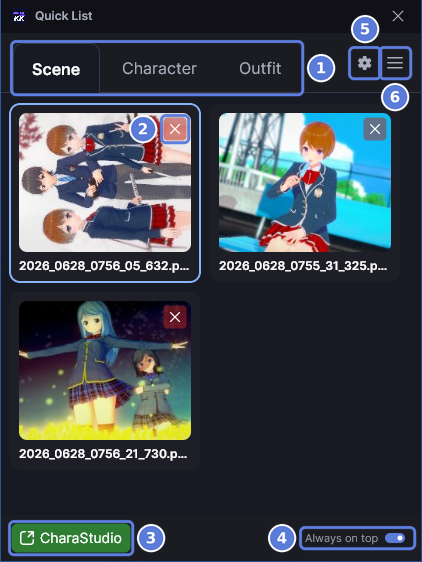
Dragging from the main window scrolls the grid. In the Quick List, dragging sends the file's location to the game. The game must be open with the KK Library plugin, and the Quick List must stay visible over it. Always on top (4) is on by default.
What it can do
#Collect assets
#Add an asset from the inspector or a tile's right-click menu, or add many at once.
- A new asset goes to the top of its tab, already selected. The window comes forward.
- The list holds up to 300 assets across its tabs. At 300, the status bar says so and nothing more is added.
One list that stays
#KK Library keeps one list for scenes, cards and outfits, even after you close the window or restart.
- The Scene, Character and Outfit tabs (1) each show their part. They don't change the main window.
- The list isn't part of your library or a library export.
- Moving an asset to the Trash, or removing it from your library, takes it off the list. When Review duplicates moves a copy to the Trash, the copy you keep takes its place.
- An asset whose file is gone shows File missing. You can't load it until the file is back.
What a drop does
#A drop goes straight to the game, not through KK Library. So it can't open the game. Open CharaStudio or the character maker first.
- In CharaStudio, a dropped scene replaces the open one. If that scene has anything in it, CharaStudio asks first.
- An outfit dropped on CharaStudio dresses the character selected there. With nobody selected, nothing loads.
- At the main game's title screen, a card or an outfit waits until a character maker opens.
- On other game screens, like Free H, the Drag & Drop mod takes the drop if you have it.
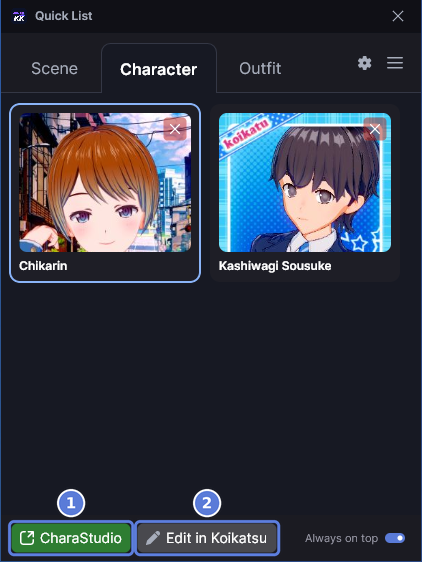
CharaStudio (3) and Edit in Koikatsu go through KK Library. So they can open a closed game and check who an outfit is for (Koikatsu plugin). Load Asset Settings (5) applies to both (Choose which parts of a card or outfit load).
The window
#The window has no taskbar button and can't be minimized. Close it to put it away.
- It opens in the bottom-right corner of the screen, at the size you left it.
- The arrow keys, Home and End move through the tiles. Enter loads the selected asset through CharaStudio.
- R-18 assets blur as they do in the main window.
How to do it
#Add an asset to the Quick List
#
- Select a tile in the main window.
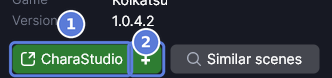
- In the inspector, select + (2) beside CharaStudio (1).
- The Quick List opens with the asset at the top of its tab. The + turns into −.
You can also right-click a tile and choose Add to Quick List. For an asset in the Trash, the + is grayed out and the right-click menu doesn't open.
Add several assets at once
#
- Select several tiles with Ctrl+click or Shift+click.
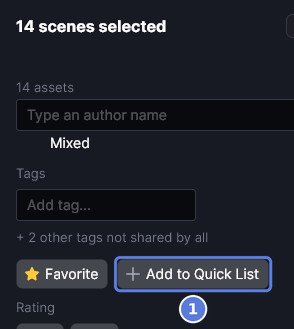
- Select Add to Quick List (1) in the inspector. They go to the top of the list. Assets that are already on it, or in the Trash, are skipped.
- When every selected asset is on the list, the button reads Remove from Quick List.
The button is grayed out while KK Library is still analyzing a selected asset. It is also grayed out when every selected asset is in the Trash.
Drag an asset into the game
#
- Open the game on the screen you want: CharaStudio or the character maker.
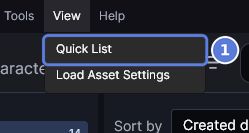
- If the Quick List isn't open, open View ▸ Quick List (1).
- Select the tab for the asset's type.
- Press a tile and drag it onto the game window. Release it there.
- In CharaStudio, hold Shift as you release a scene to add it to the open scene.
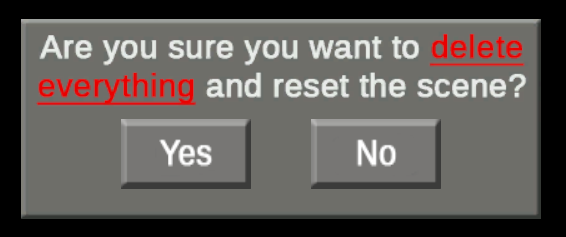
- If CharaStudio asks before it replaces the open scene, answer it in the game. KK Library's own settings don't change this question.
Load an asset with a button
#
- Select a tile in the Quick List.
- Select CharaStudio (1). The asset loads in CharaStudio as it does from the main window (Koikatsu plugin).
- For a card or an outfit, select Edit in Koikatsu (2) to load it in the character maker instead.
When the game is closed, KK Library asks before it opens it (Load a scene in CharaStudio). An outfit only opens CharaStudio. Then select a character in the scene and select CharaStudio again.
Remove assets from the Quick List
#- Select the ✕ on a tile. The file stays where it is.
- To empty one tab, select More actions at the top right.
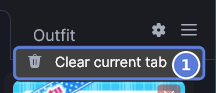
- Select Clear current tab (1). It empties only the tab you are on. It doesn't ask first and can't be undone. The files stay where they are.
A middle-click on a tile also takes it off, and so does Delete on the selected tile. In the main window, the inspector's − and the right-click Remove from Quick List do the same.
Checked with KK Library 0.1.0-beta.9.1