
Settings and data
Change KK Library's settings, manage the folders it reads and see where it keeps your library of Koikatsu scenes, cards and outfits.
- Where to find it
- File ▸ Settings and File ▸ Manage library folders
What it is
#Settings holds choices for KK Library, such as its language and the folders it reads. Your library file, settings, thumbnail cache and edit backups are in %APPDATA%\KKLibrary, separate from the app's folder.
Your library stays on your computer. KK Library doesn't send your scenes, cards, outfits, tags, ratings or favorites to an online service.
What it can do
#Every setting in one place
#Settings has four sections on the left (1 to 4).
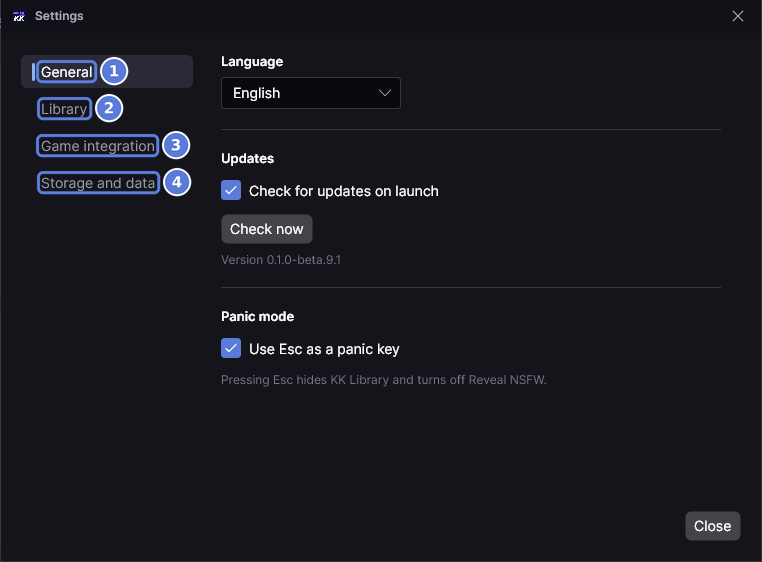
| Section | Setting | What it does | More |
|---|---|---|---|
| General (1) | Language | Shows KK Library in English or 日本語 | Change the language |
| Updates | Checks for a new version. KK Library never installs one itself | Update KK Library | |
| Panic mode | Turns the Esc panic key on or off | Panic mode | |
| Library (2) | Verified authors | Keeps the verified author list up to date and gets author pictures | Authors |
| Ignored folders and files | Names the folders and files sync skips | What sync skips | |
| Never suggested as an author | Lists folder names that are never an author | Authors | |
| Game integration (3) | Koikatsu/CharaStudio integration, Opening the game, Wait for a starting game, Loading scenes, Notifications | Your game folder, the KK Library plugin and how files load in the game | Koikatsu plugin |
| Storage and data (4) | Library file | Shows where your library is kept | Find where your library is kept |
| Library restore points, Edit backups, Removed animation data | Keeps earlier versions so you can go back | Restore points and edit backups | |
| Thumbnail cache | Keeps small pictures so the grid scrolls smoothly. You can turn it off | Thumbnail cache | |
| Not in Settings | Full sync, Sync mods | Reads every file again, or the installed mods. Both are under the arrow beside Sync | Sync after you add files |
Your library folders
#File ▸ Manage library folders shows how many assets each library folder holds, when it was last synced and whether KK Library can reach it. Folders you add there sync when you close the window.
- Folder not found means the folder was deleted or moved. The next sync marks its files missing (Find missing files).
- Drive not connected means the drive is unplugged or can't be reached, or another drive took its letter. Sync skips that folder and leaves its assets as they are.
- Sync reads a library folder and every folder inside it, so one folder is never in your library twice. A folder inside a library folder can't be added. A folder that holds library folders replaces them after KK Library asks. Their assets keep their tags and authors, but author settings you gave those folders no longer apply.
What sync skips
#Sync skips every folder and file whose name matches a line in Ignored folders and files.
*stands for any characters and?for one character. Capitals don't matter.- A line matches a name, never a whole path. So
_autosaveskips every folder with that name. It is the one line there from the start, because CharaStudio fills those folders with automatic saves.
Restore points and edit backups
#KK Library keeps three kinds of file so you can go back. You can delete them in Storage and data.
- Library restore points hold your library file as it was before an upgrade or an import. KK Library also saves one when you start with a new library. They show only when there is one, and KK Library never deletes them by itself. Settings has no button to go back to one. Go back to a library restore point shows how.
- Edit backups are the original cards from before you changed them (Character cards). Removed animation data is what you cleared from a scene (Scenes). KK Library clears both by itself after a while.
Thumbnail cache
#The thumbnail cache holds up to about 1 GB. When it's full, it drops the pictures you haven't looked at for the longest time.
- Clear cache empties it. Pictures come back from the files as you scroll, except a missing file's, because its file is gone.
- Remove unused thumbnails removes only the pictures of files no longer in your library.
- Browse moves the cache to another drive. A new cache starts there, and the old one stays.
How to do it
#Change the language
#
- Select File ▸ Settings. It opens on General.
- Choose a language in the Language box (1).
- Select Restart now. KK Library closes and opens again in that language. Cancel keeps the language you had.
Update KK Library
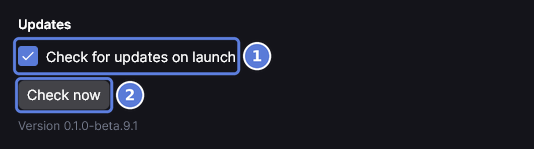
#
- Select File ▸ Settings.
- Select Check now (2). The line beside it says You're on the latest version. or names the new version.
- When a new version is out, a bar at the top of the main window names it. Select Download in that bar. The website opens.
- Download the new ZIP, extract it and replace the old app folder with it. Your library stays, because it isn't in the app folder.
To stop the check when KK Library opens, turn off Check for updates on launch (1). Dismiss in the bar hides that version until a newer one comes out.
Skip folders and files when syncing
#
- Select File ▸ Settings, then Library.
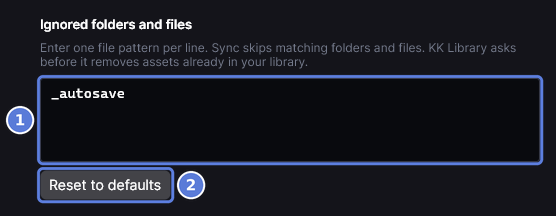
- In the box under Ignored folders and files (1), enter one name per line, like
_autosaveorold*. - Close Settings, or select anything outside the box. KK Library saves the list, and sync skips matching folders and files from then on.
- If assets already in your library match, KK Library asks first. Select Remove assets to take them out. Their files stay where they are, and their library data is deleted. Cancel keeps the old list.
- To go back to the list KK Library started with, select Reset to defaults (2).
Taking a line out doesn't bring those files back by itself. Select Sync, and they come in as new assets.
Remove a library folder
#
- Select File ▸ Manage library folders. It is also in the menu under the arrow beside Sync.
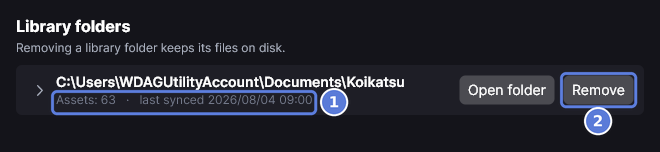
- Find the folder. The line under its path (1) says how many assets it holds and when it was last synced.
- Select Remove (2).
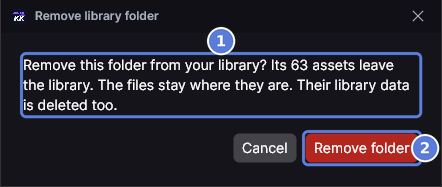
- The message (1) says how many assets leave your library. Select Remove folder (2). The files stay where they are, and sync no longer reads that folder. The assets' library data, like their tags and ratings, is deleted.
Find where your library is kept
#
- Select File ▸ Settings, then Storage and data.
- Under Library file, the path (1) shows where the library file is. It ends in
KKLibrary\catalog.db. - To see the folder, select the button beside the path (2), Open folder. The folder opens in File Explorer.
To keep a full copy of your library, see Back up your library. To take your tags to another computer, use File ▸ Export library data (Save your library data to a file).
Back up your library
#A copy of the KKLibrary folder backs up the library data, settings, author pictures, edit backups and thumbnail cache stored there. A thumbnail cache moved to another drive is not included. Your scenes, cards and outfits aren't in the folder, so back them up separately.
- Select File ▸ Exit to close KK Library. It holds the library file open while it runs.
- In File Explorer's address bar, enter
%APPDATA%and press Enter. - Copy the
KKLibraryfolder to another drive, like an external drive or a USB stick.
To restore it, close KK Library, move the current KKLibrary folder out of %APPDATA% and copy your backup there in its place. Everything you did since the backup is lost. KK Library makes the pictures again from your files when the cache is missing.
On another computer, the copy works best when your library folders have the same paths. If they don't, their assets show as missing until you locate them. An export avoids that, because import finds files by their contents.
Go back to a library restore point
#Go back to a restore point to undo an import. An older KK Library that says A newer version made this data can open a restore point from before the upgrade. This works only when Settings lists a restore point. Your library returns to its state when the restore point was made. Later tags, ratings, notes, authors and synced assets are lost. Your scenes, cards and outfits on disk don't change.
Find the restore point.
- In File ▸ Settings, select Storage and data. Under Library restore points, find the one you want. The version in its name, like
beta-9, is the version the library is from. One from before an import also hasbefore-importand the date and time in its name. - Select Open folder beside the path under Library file. The folder opens in File Explorer. If KK Library won't open, enter
%APPDATA%\KKLibraryin File Explorer's address bar instead. The restore points are the files whose names start withcatalog.db.and end in.bak.
Replace the library file.
- Select File ▸ Exit to close KK Library. It holds the library file open while it runs.
- In File Explorer, turn on file name extensions so you see each file's whole name. In Windows 11, select View ▸ Show ▸ File name extensions. In Windows 10, turn on File name extensions under View. Otherwise File Explorer can hide the
.bakat the end of a restore point's name. - Move
catalog.dbto another folder, such as a new folder on your desktop. Ifcatalog.db-walorcatalog.db-shmis there, move it too. These files are your current library, and you can bring it back the same way later. - Copy the restore point, paste it in the same folder and rename the copy to
catalog.db. Check that the name is exactlycatalog.db, with no.bakafter it. If there is a file with the restore point's name plus-walor-shm, copy it too. Rename it tocatalog.db-walorcatalog.db-shm.
Open the restored library.
- Open the KK Library version you want to use. A newer version upgrades an older restore point when it opens it, as it did the first time.
- Select Sync. Files you added since the restore point was made come in as new assets.
The restore point stays in the list, so you can go back to it again. Edit backups you made since then go to the Recycle Bin, because the older library doesn't know them.
Checked with KK Library 0.1.0-beta.9.1